Couldn't find the camera
Check if the camera LED is solid green
While the camera LED is blinking green, the camera is still trying to connect to Wi‑Fi.
If you search for the camera during this state, the app will not be able to find it.
Please wait until the LED turns solid green, then search for the camera again.
Connect to the same Wi‑Fi network
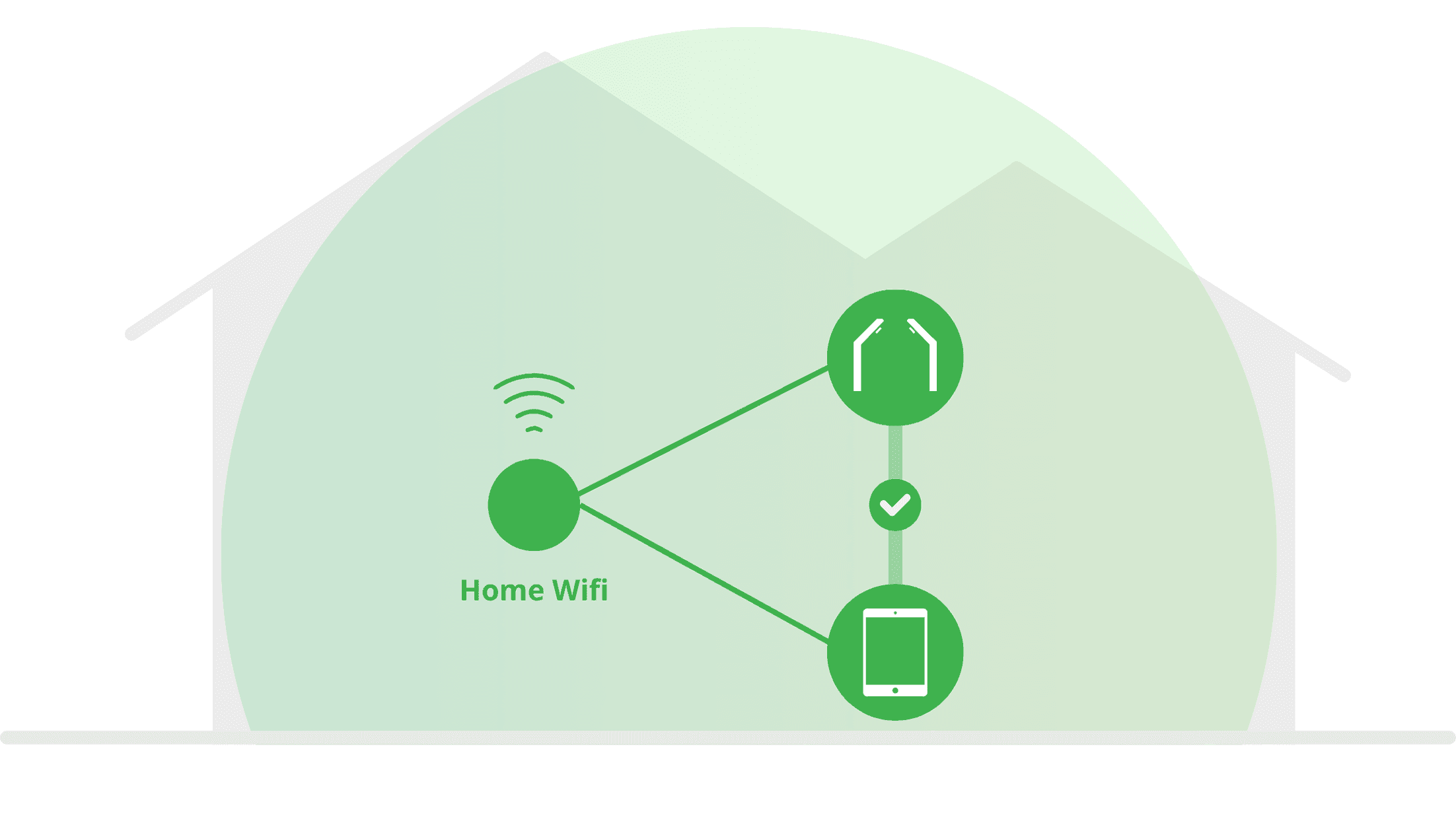
For the app to find the GRAN EYE camera, your phone or tablet must be connected to the same Wi‑Fi network as the camera.
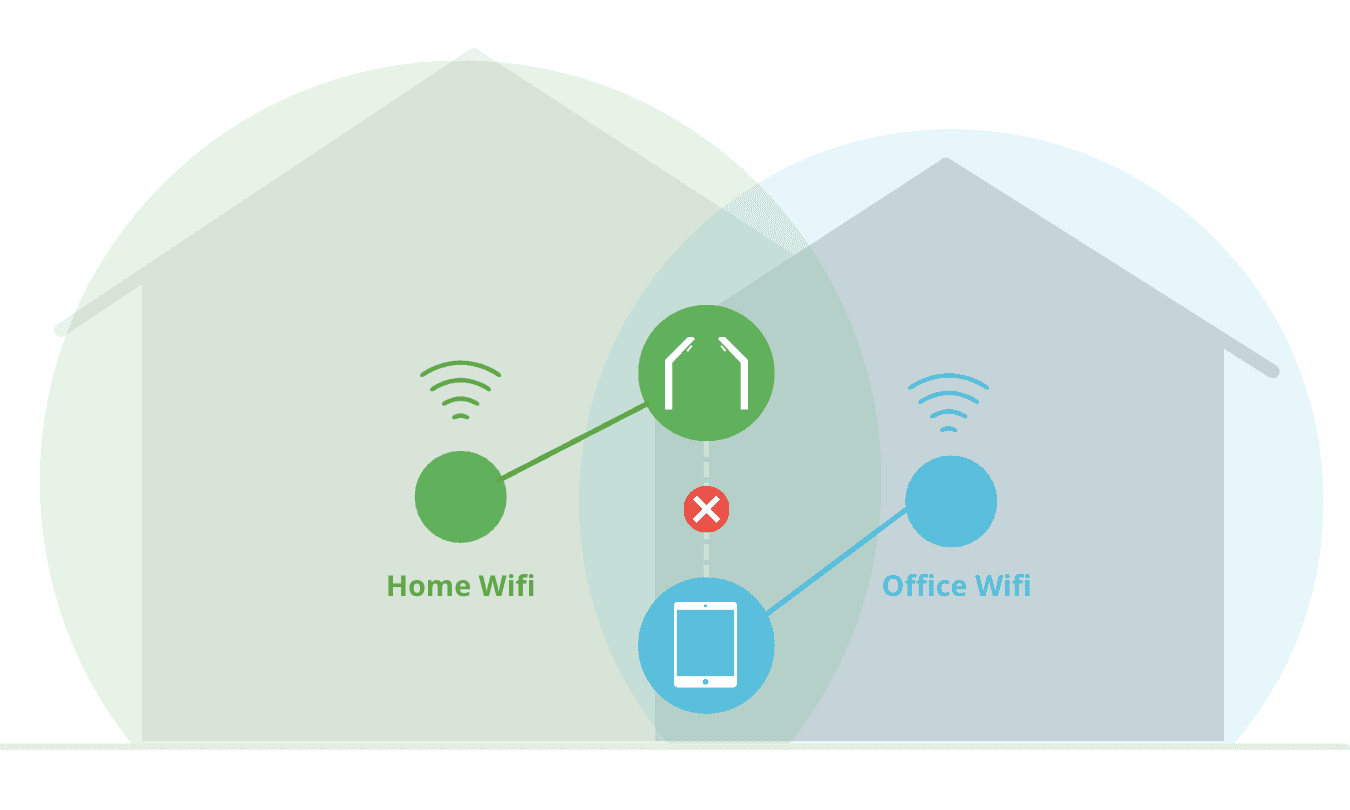
If they are connected to the different Wi-Fi network, the app cannot find the camera.
Use the examples below and connect both the camera and your device to the same network.
✅ OK example
Camera | Device |
|---|---|
Home 2.4G | Home 2.4G |
❌ NG examples
Camera | Device | Notes |
|---|---|---|
Home 2.4G | Office 2.4G | Connected to different networks |
Home 2.4G | Mobile data | Connected to different networks |
If you accidentally scanned incorrect Wi‑Fi information, reset the camera’s Wi‑Fi settings.
Self troubleshooting
Allow required permissions
Bluetooth
Local Network
Location
Nearby Devices, etc.
Turn your device’s Wi‑Fi off and back on
Even if it is already on, turning it off once may help.
Restart the app
Restarting the app may resolve the issue.
Restart the camera
Quickly press the button about 5cm below the camera lens once.
Restart your device
Restart your phone or tablet.
Reinstall the app
Reinstalling may clear unnecessary cache or corrupted data and fix the issue.
For Android devices
On Android, some data may remain on your device even after uninstalling the app. To fully reset it, delete the app data or clear storage before uninstalling.
Open the Settings app.
Go to “Apps” and select the “GranDarts” app.
Open “Storage & cache”.
Tap “Clear storage” or “Delete data”.
All app settings and stored data will be completely removed.
Check your Wi‑Fi router’s security settings
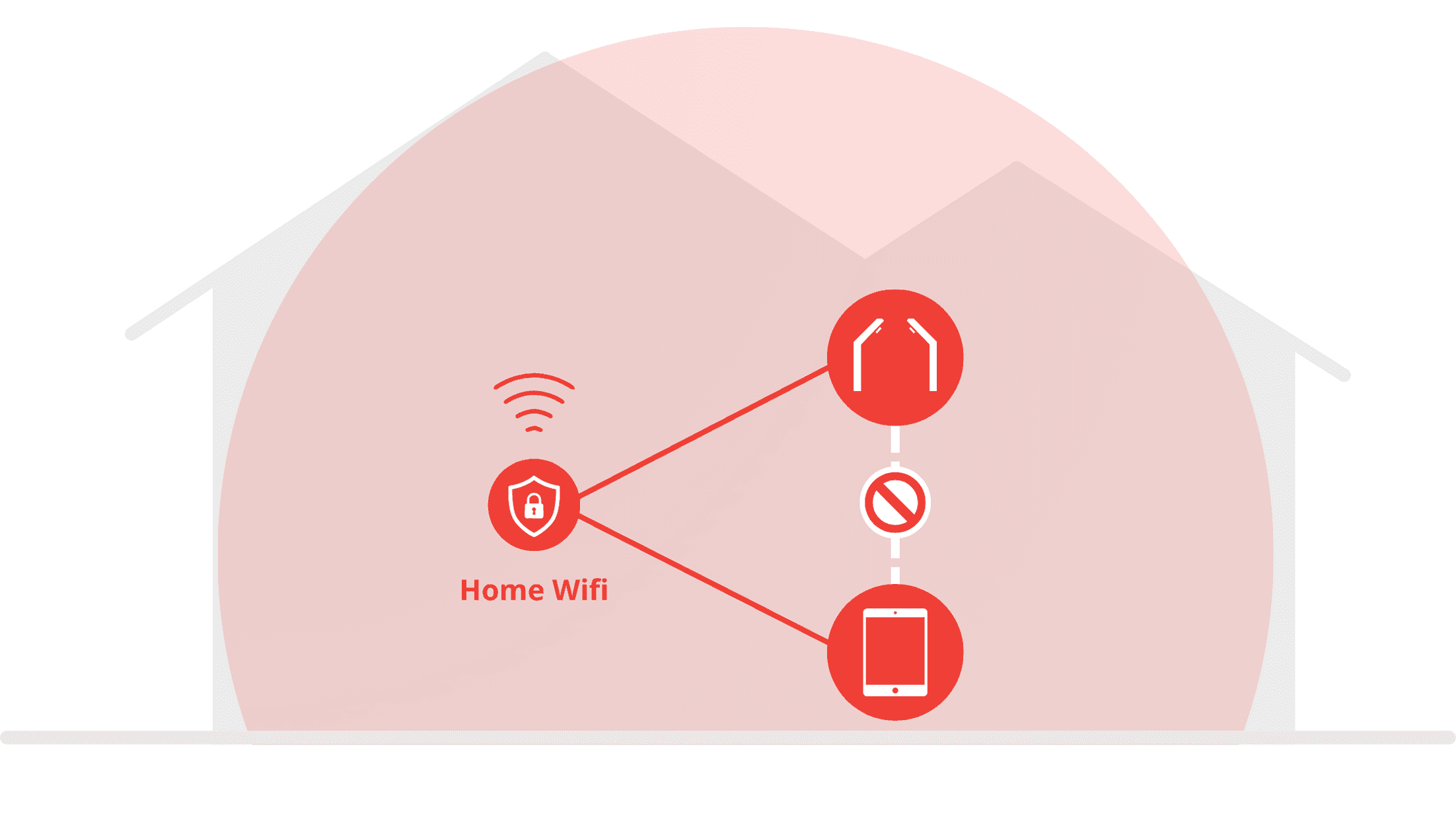
Depending on your router settings, communication between devices on the same network may be restricted.
Check your router’s security settings and check items like the following.
AP Isolation | Turn OFF |
SSID Isolation | Turn OFF |
Guest network | Do not use a guest network. Guest networks typically block communication with the internal network. |
Prioritize compatibility | Turn ON This is a setting used when sharing a network from a device (tethering). |
Firewall | Please contact your router manufacturer. |
For questions about router settings, please contact your router manufacturer.
Initialize the camera
Initializing resets the internal program to the factory default state.
Quickly press the button about 5cm below the camera lens five times.
The camera LED will start blinking red rapidly
The camera will restart. When it begins blinking green, initialization is complete.
Wait until the camera connects to Wi‑Fi and the LED turns solid green.
After initializing, be sure to update the firmware.
If it keeps looping in the blinking green state, try resetting the camera.
Check if the camera LED is solid green
While the camera LED is blinking green, the camera is still trying to connect to Wi‑Fi.
If you search for the camera during this state, the app will not be able to find it.
Please wait until the LED turns solid green, then search for the camera again.
Connect to the same Wi‑Fi network
For the app to find the GRAN EYE camera, your phone or tablet must be connected to the same Wi‑Fi network as the camera.
If they are connected to the different Wi-Fi network, the app cannot find the camera.
Use the examples below and connect both the camera and your device to the same network.
✅ OK example
Camera | Device |
|---|---|
Home 2.4G | Home 2.4G |
❌ NG examples
Camera | Device | Notes |
|---|---|---|
Home 2.4G | Office 2.4G | Connected to different networks |
Home 2.4G | Mobile data | Connected to different networks |
If you accidentally scanned incorrect Wi‑Fi information, reset the camera’s Wi‑Fi settings.
Self troubleshooting
Allow required permissions
Bluetooth
Local Network
Location
Nearby Devices, etc.
Turn your device’s Wi‑Fi off and back on
Even if it is already on, turning it off once may help.
Restart the app
Restarting the app may resolve the issue.
Restart the camera
Quickly press the button about 5cm below the camera lens once.
Restart your device
Restart your phone or tablet.
Reinstall the app
Reinstalling may clear unnecessary cache or corrupted data and fix the issue.
For Android devices
On Android, some data may remain on your device even after uninstalling the app. To fully reset it, delete the app data or clear storage before uninstalling.
Open the Settings app.
Go to “Apps” and select the “GranDarts” app.
Open “Storage & cache”.
Tap “Clear storage” or “Delete data”.
All app settings and stored data will be completely removed.
Check your Wi‑Fi router’s security settings
Depending on your router settings, communication between devices on the same network may be restricted.
Check your router’s security settings and check items like the following.
AP Isolation | Turn OFF |
SSID Isolation | Turn OFF |
Guest network | Do not use a guest network. Guest networks typically block communication with the internal network. |
Prioritize compatibility | Turn ON This is a setting used when sharing a network from a device (tethering). |
Firewall | Please contact your router manufacturer. |
For questions about router settings, please contact your router manufacturer.
Initialize the camera
Initializing resets the internal program to the factory default state.
Quickly press the button about 5cm below the camera lens five times.
The camera LED will start blinking red rapidly
The camera will restart. When it begins blinking green, initialization is complete.
Wait until the camera connects to Wi‑Fi and the LED turns solid green.
After initializing, be sure to update the firmware.
If it keeps looping in the blinking green state, try resetting the camera.