English
iOS OTG Connection
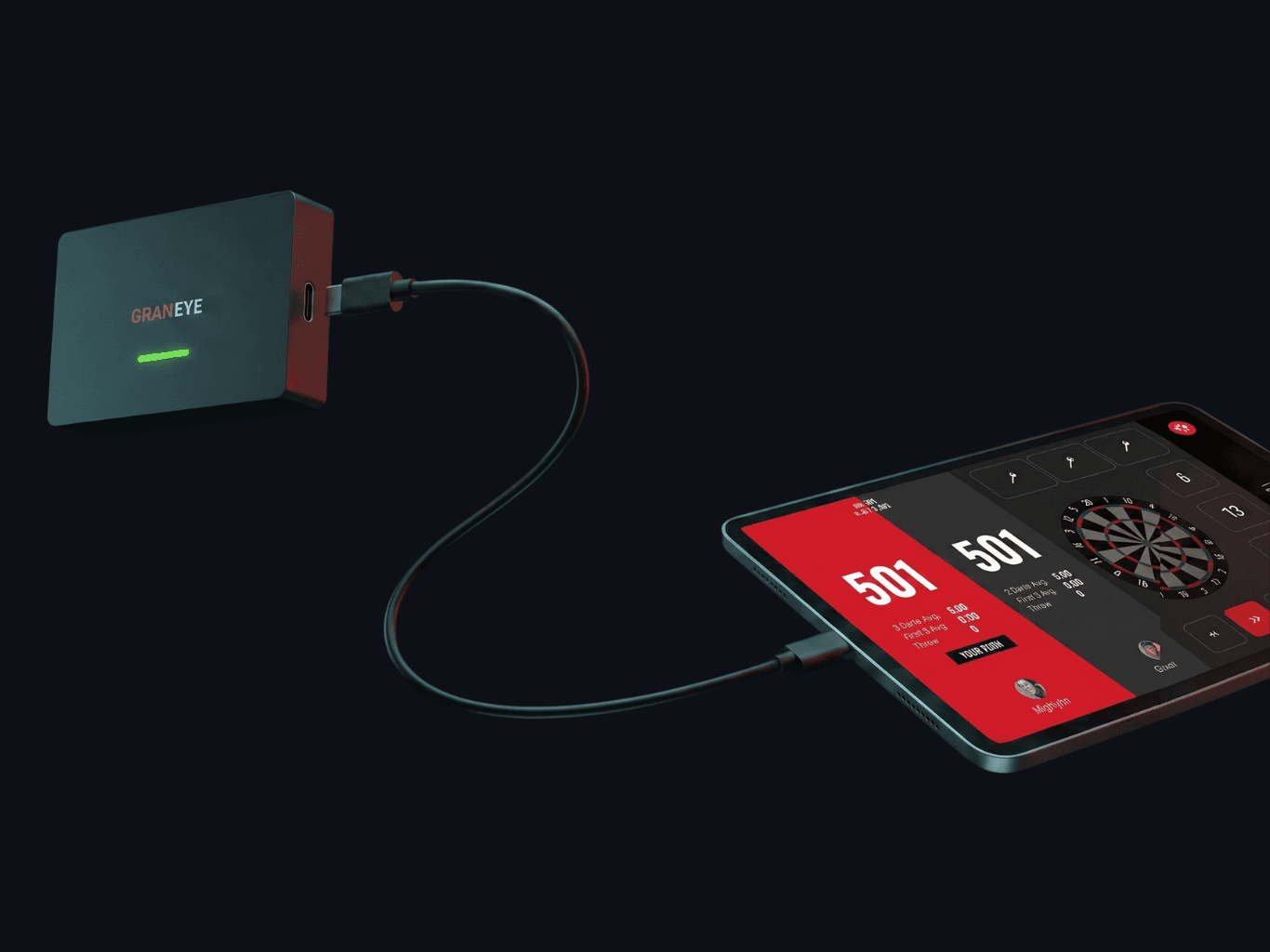
Connect GRAN EYE to an iPad over USB
Supported devices: iPad with Apple M‑series chips only. Compatibility may vary depending on your device model and iOS version.
What you need
GRAN EYE
iOS device (Apple M‑series)
USB‑C cable (included)*
* If you have the G1 model, the cable is not included. Please prepare an OTG adapter and a USB cable compatible with the OTG adapter. *If you use an adapter: Apple genuine or a proven compatible adapter is recommended.
Connection steps
1. Power on GRAN EYE
Confirm the LED is on.
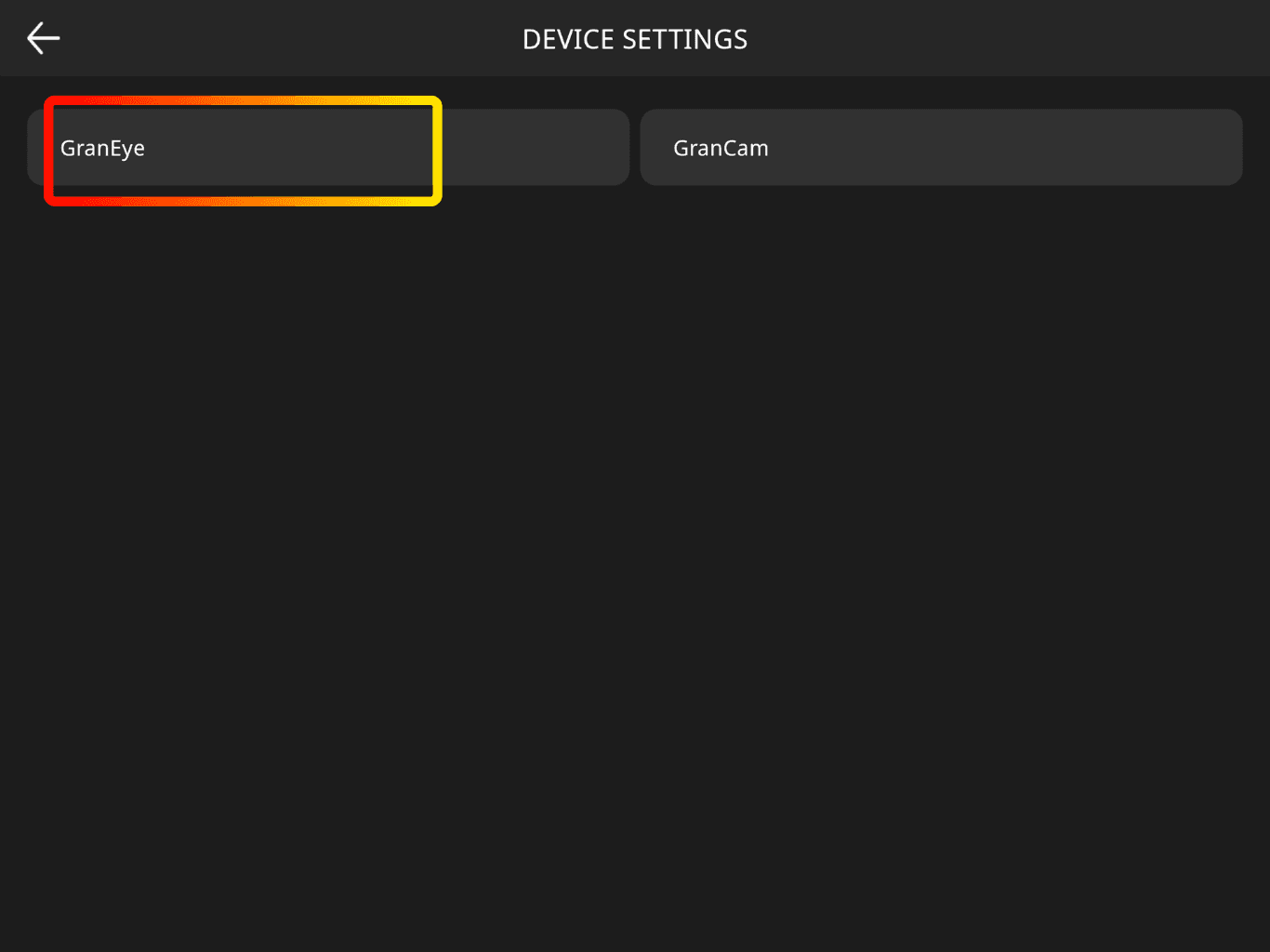
2. Open Device Settings and select Gran Eye
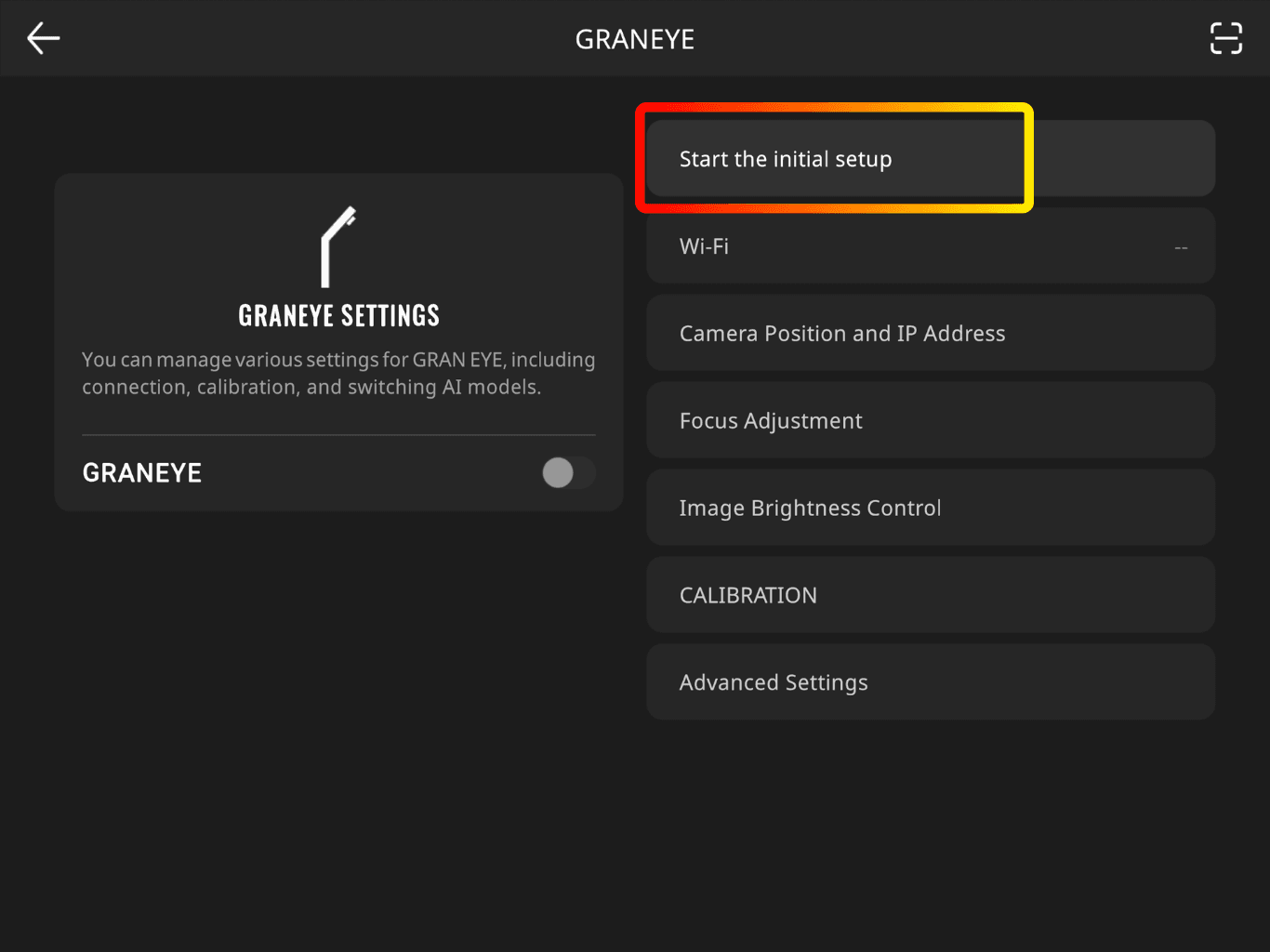
3. Tap Start the initial setup
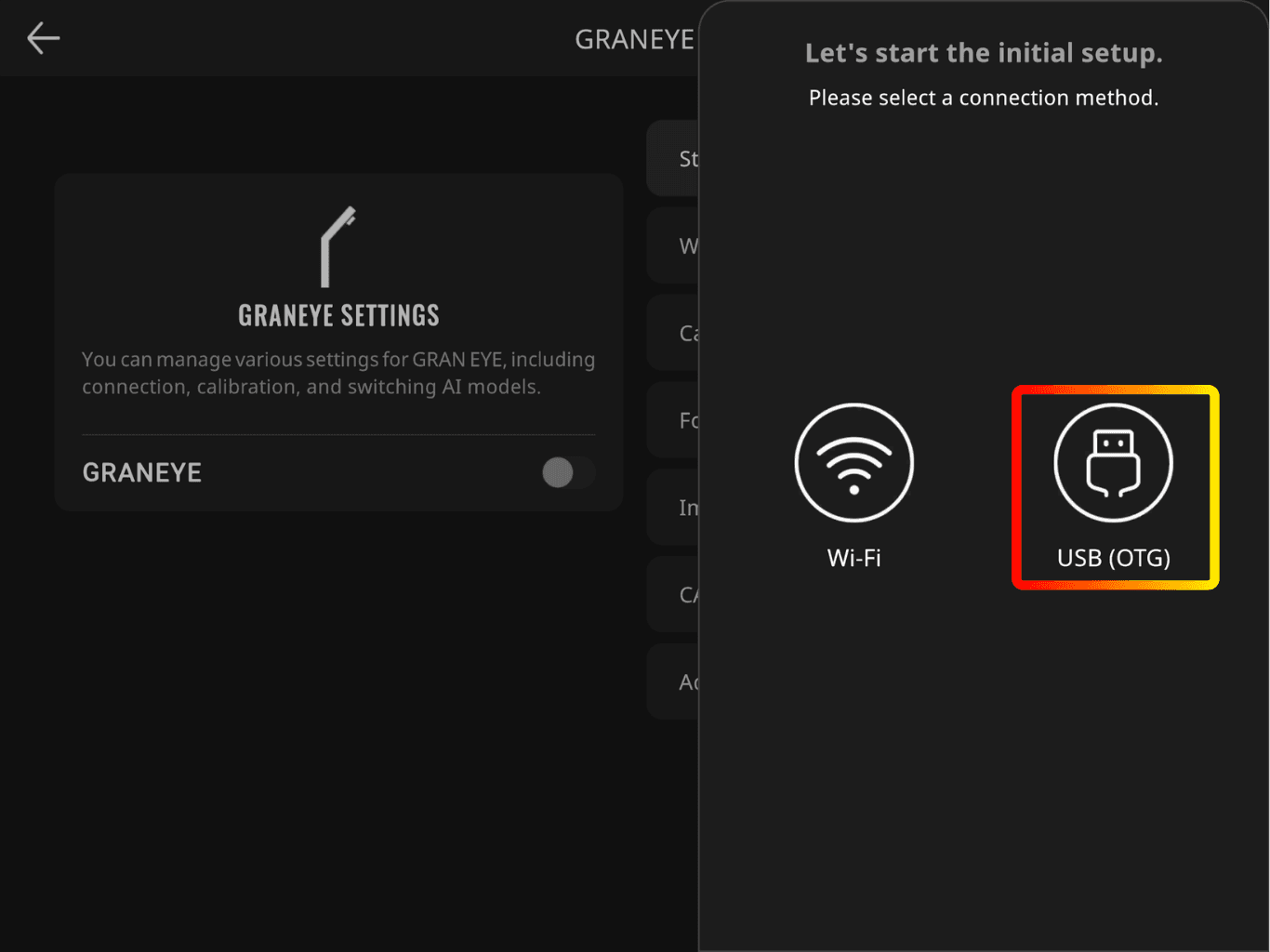
4. Select USB (OTG)
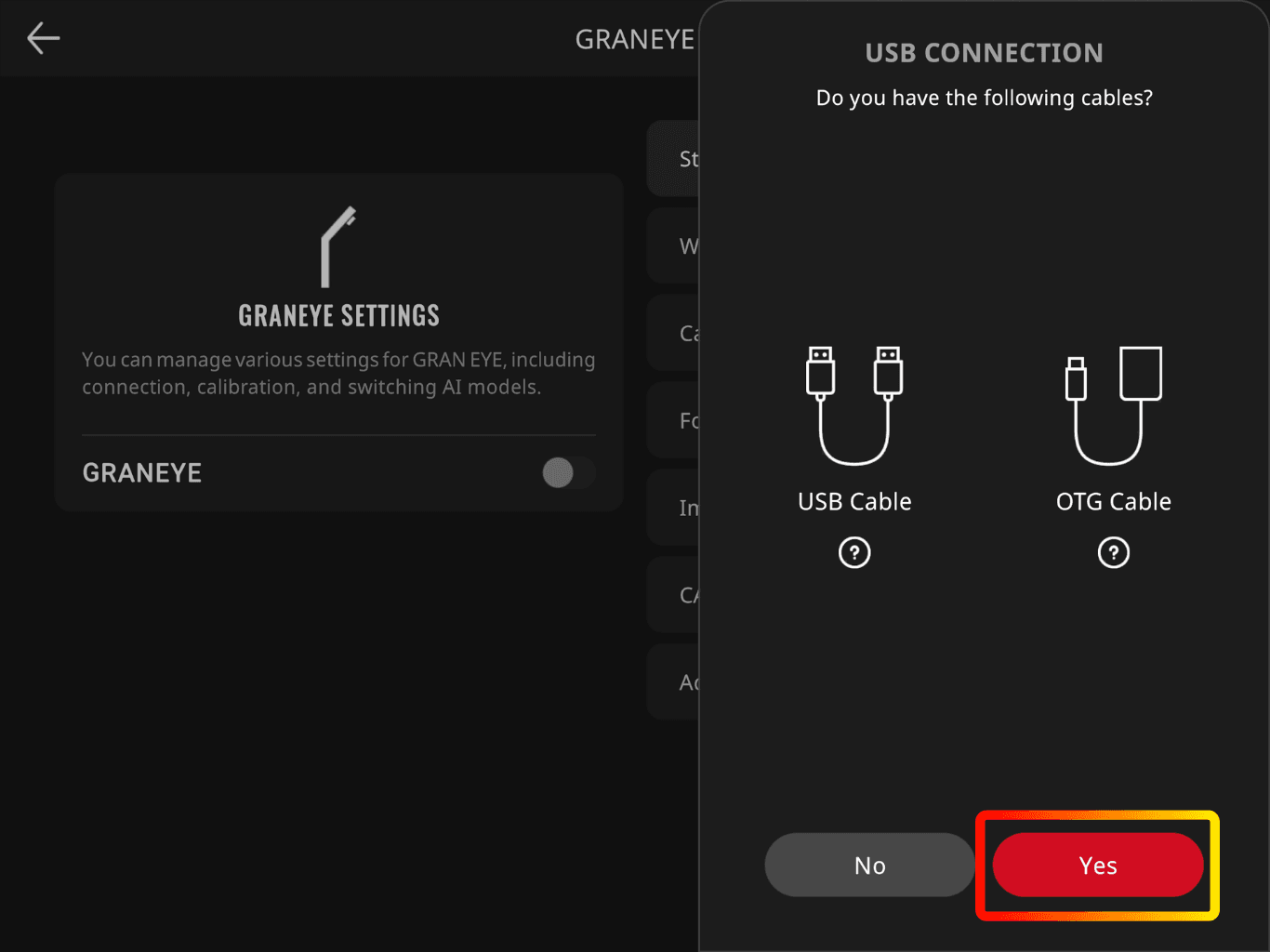
5. Select Yes
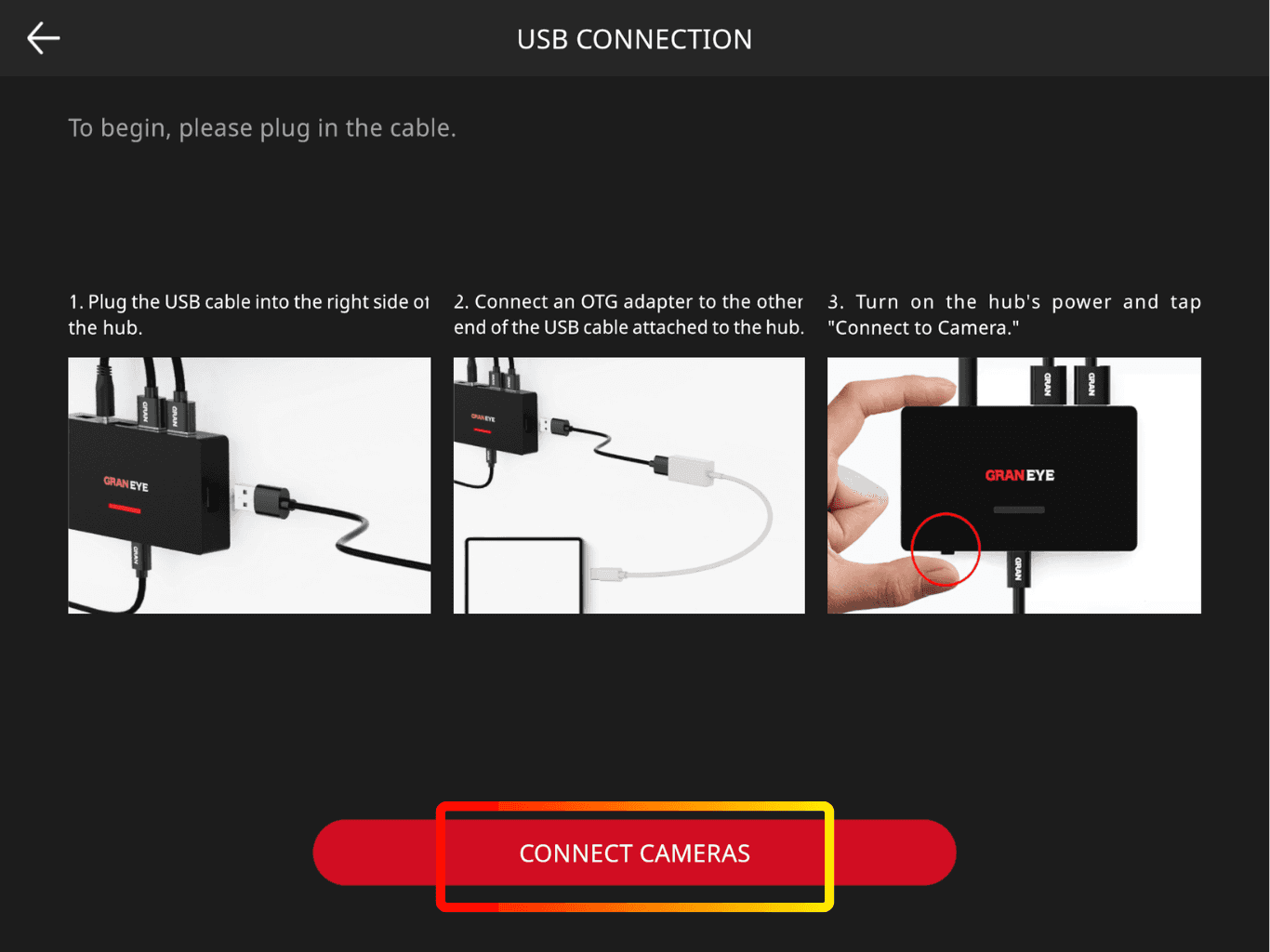
6. Connect GRAN EYE and your iOS device via USB cable
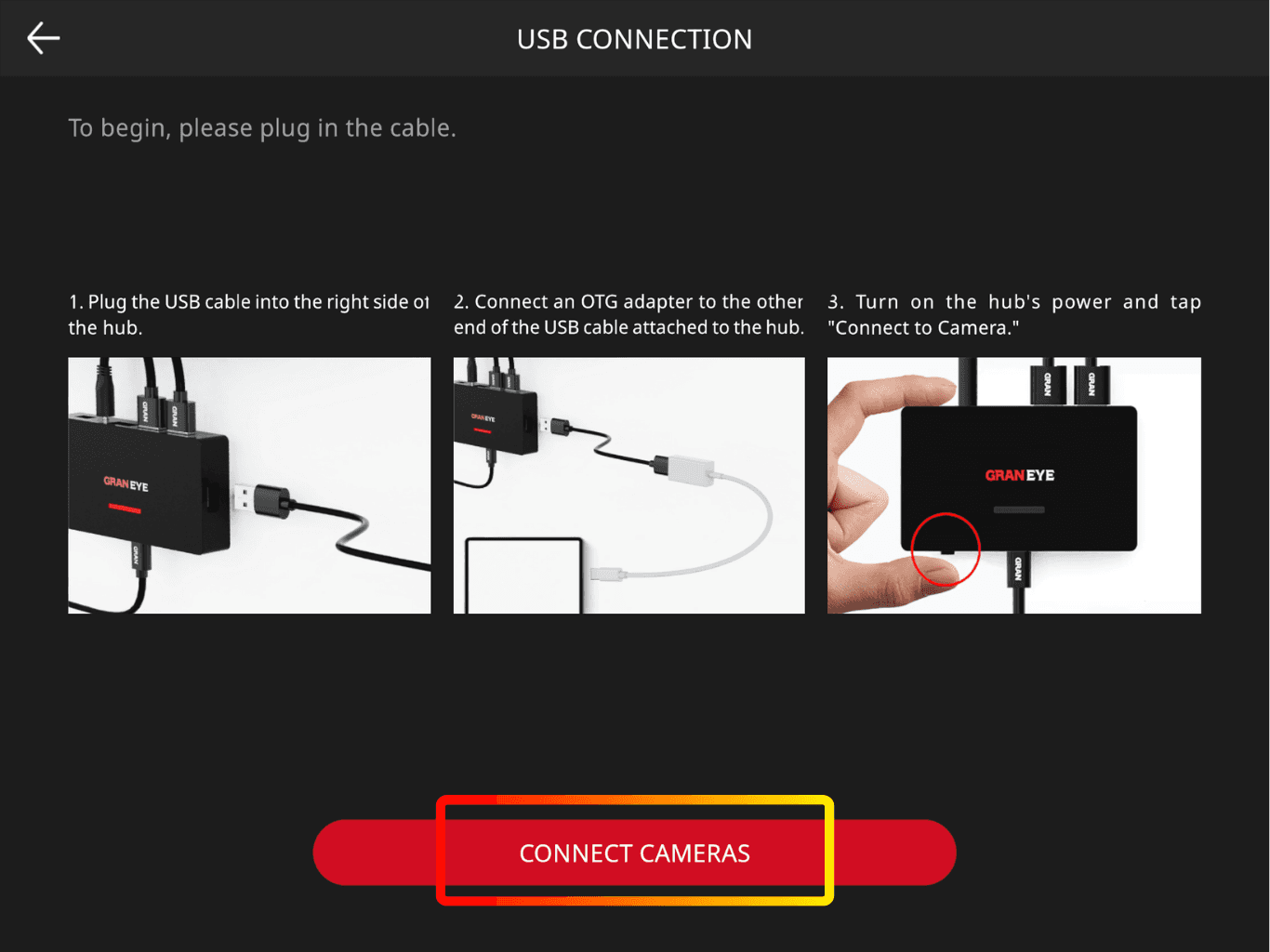
7. Tap CONNECT CAMERAS
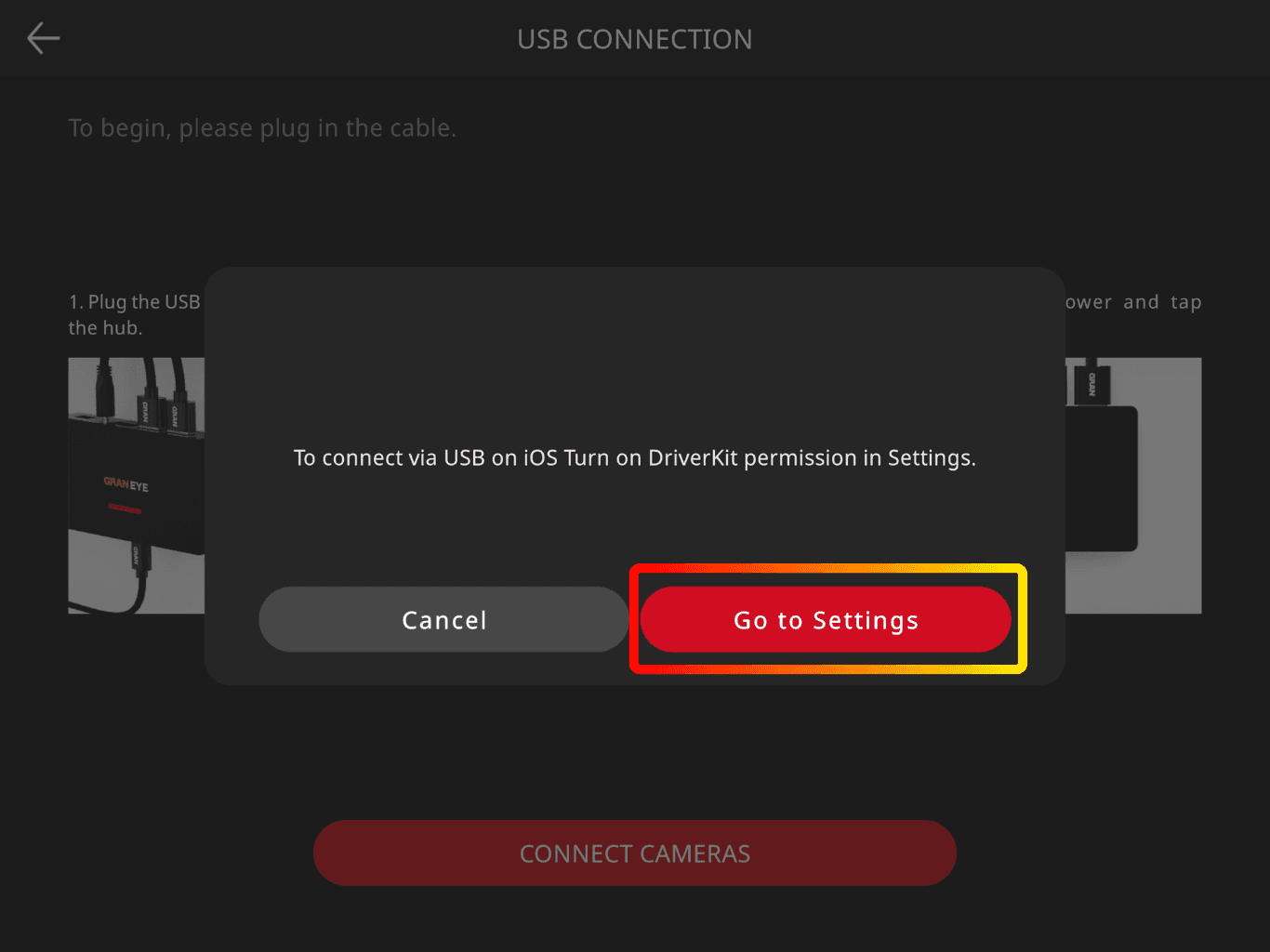
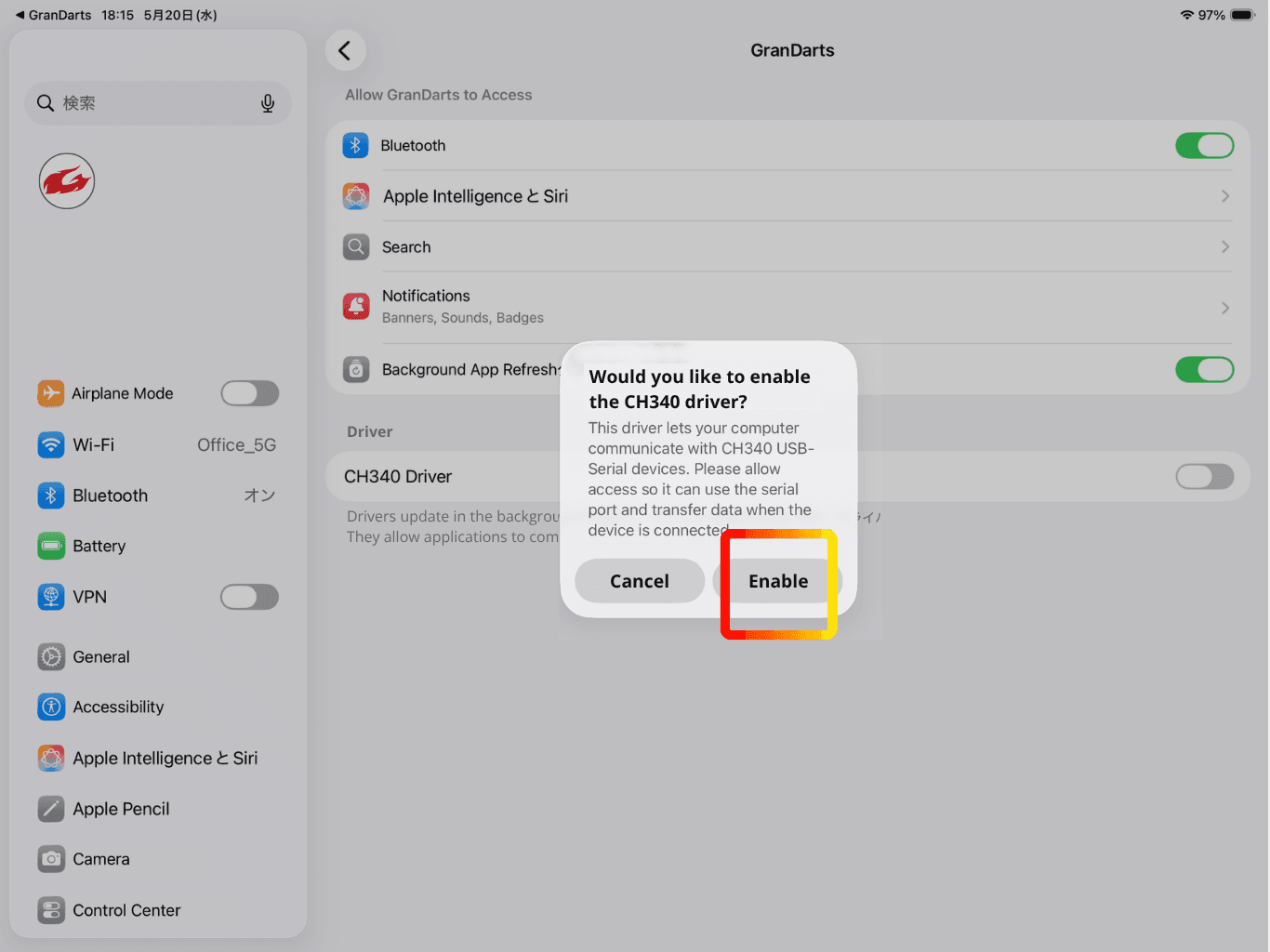
8. Enable the driver: tap Go to Settings
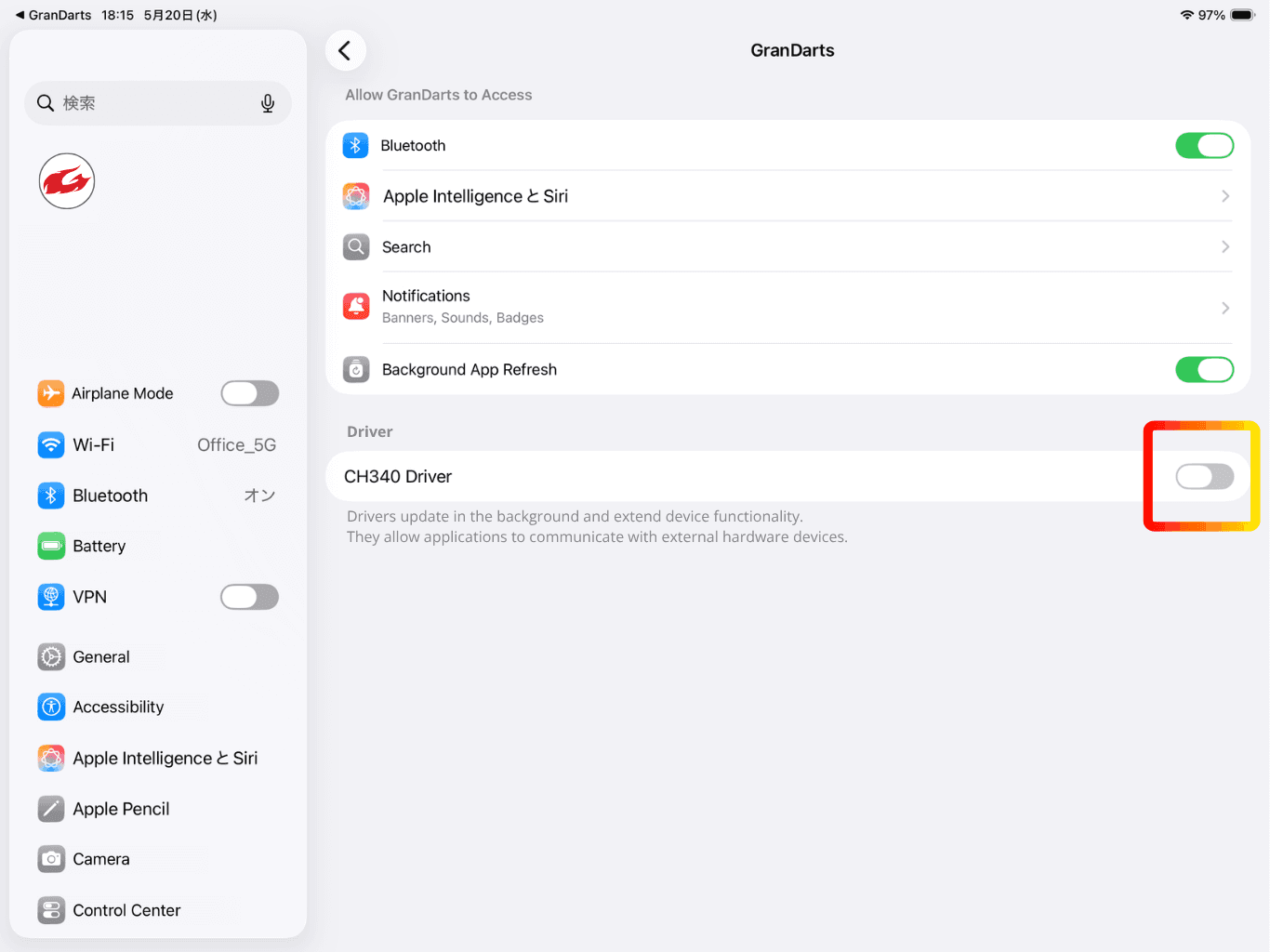
9. Turn CH340 Driver ON
10. Return to the app and tap CONNECT CAMERAS
11. Connection completed
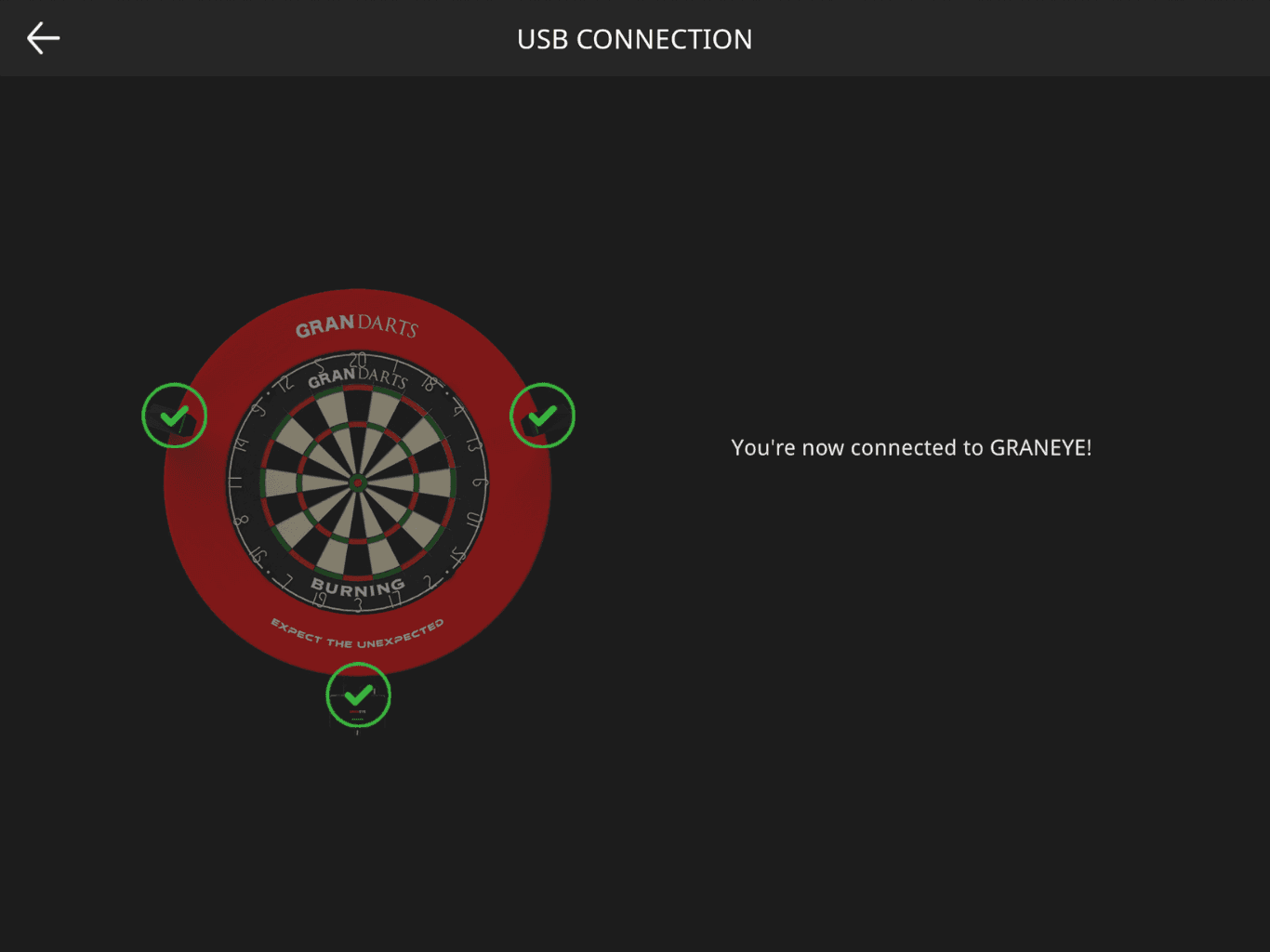
It may take a few seconds to complete the connection.
12. Follow the instructions in the app to continue setup
If it doesn’t connect
Unplug and replug the cable/adapter, then try again
Restart the iOS device and retry
Force-close the app and reopen it
Power-cycle GRAN EYE
Related Article