How to Organize the Tournament
Introduction
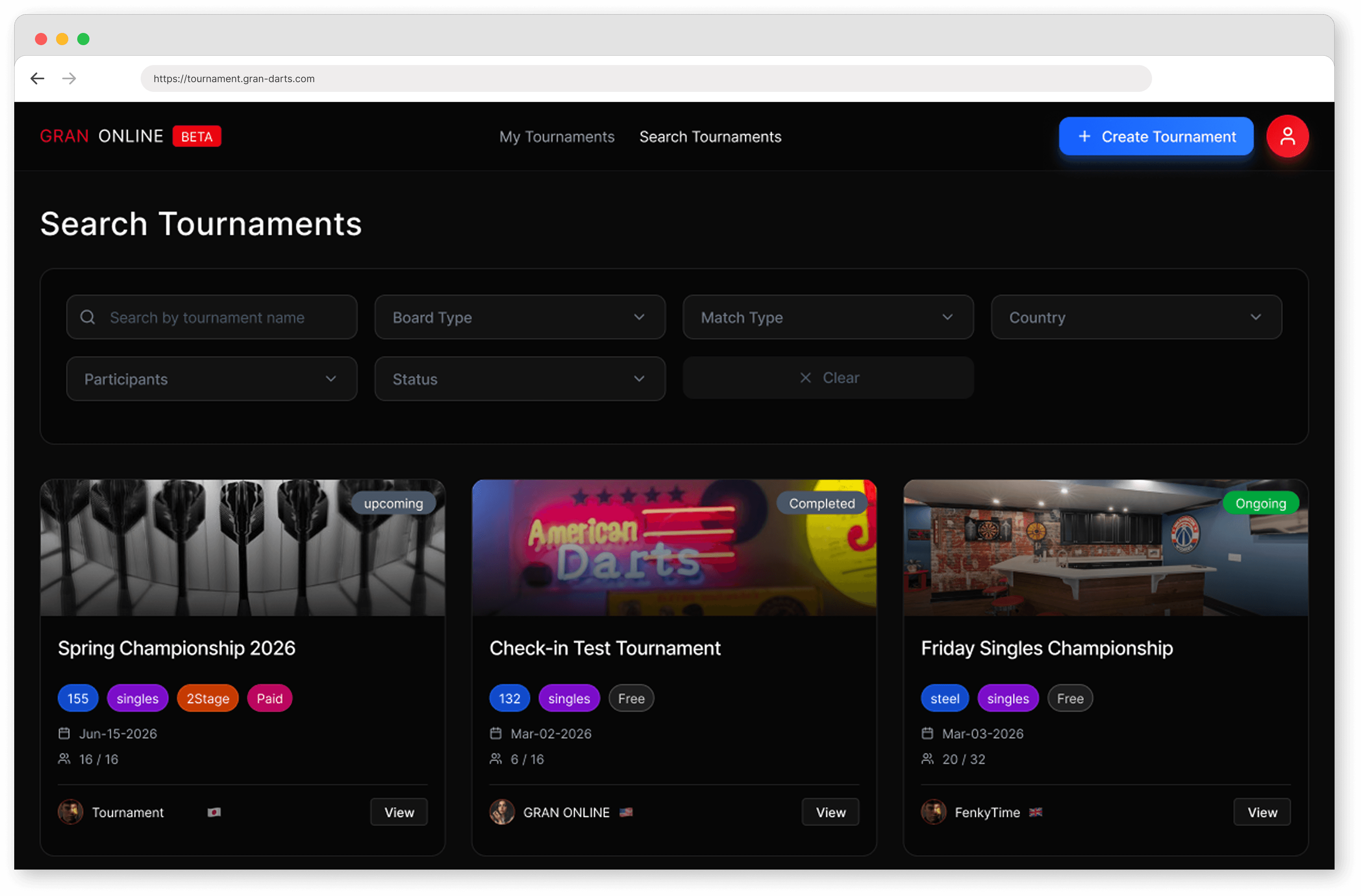
To create / join / check tournament progress
Visit the web page GRAN ONLINE
https://tournament.gran-darts.com/
To play your matches
Use the GranDarts app

How to create a tournament
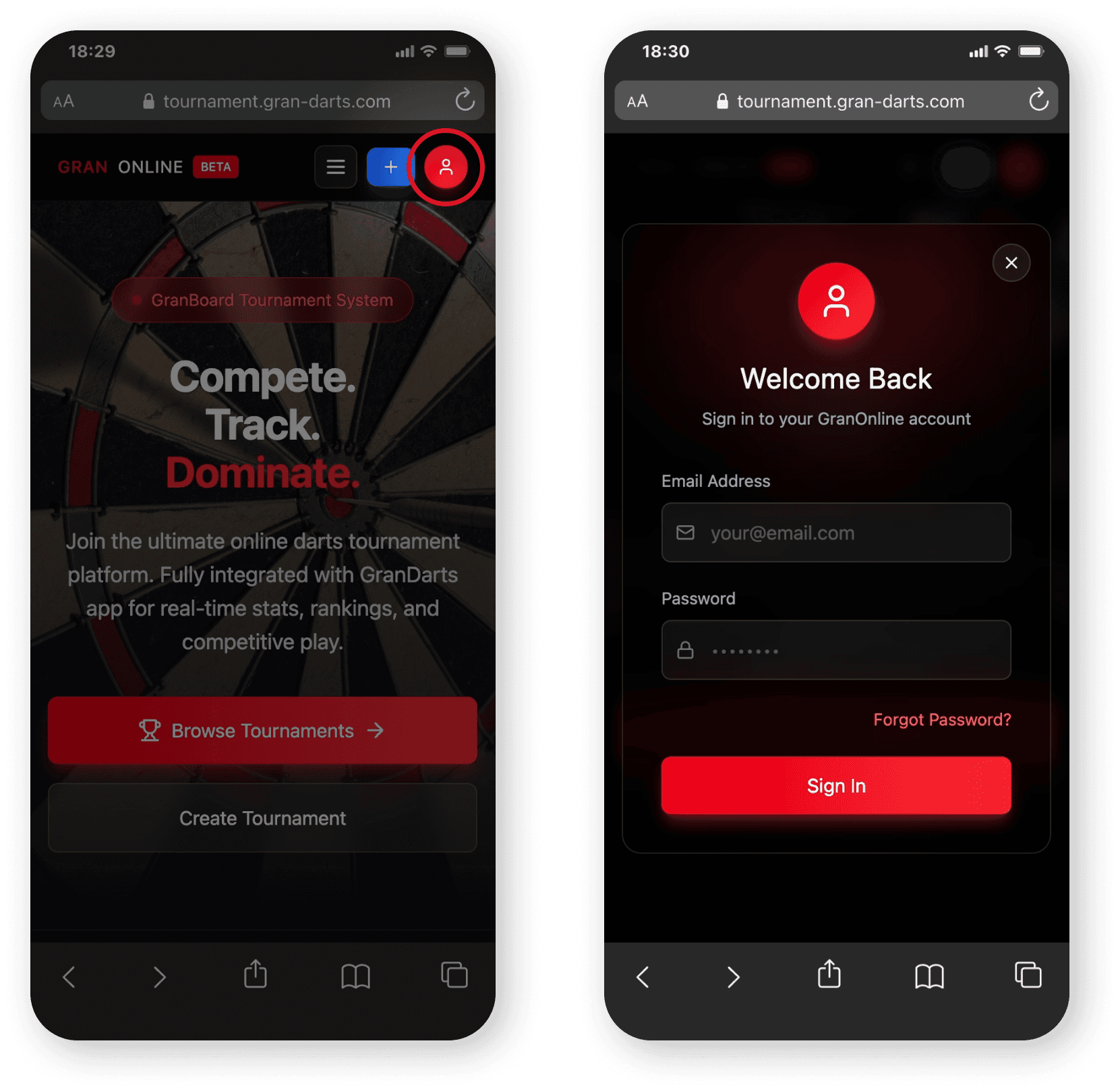
1. Log in
Log in to GRAN ONLINE https://tournament.gran-darts.com/
Use the same email address and password as your GranDarts app account.
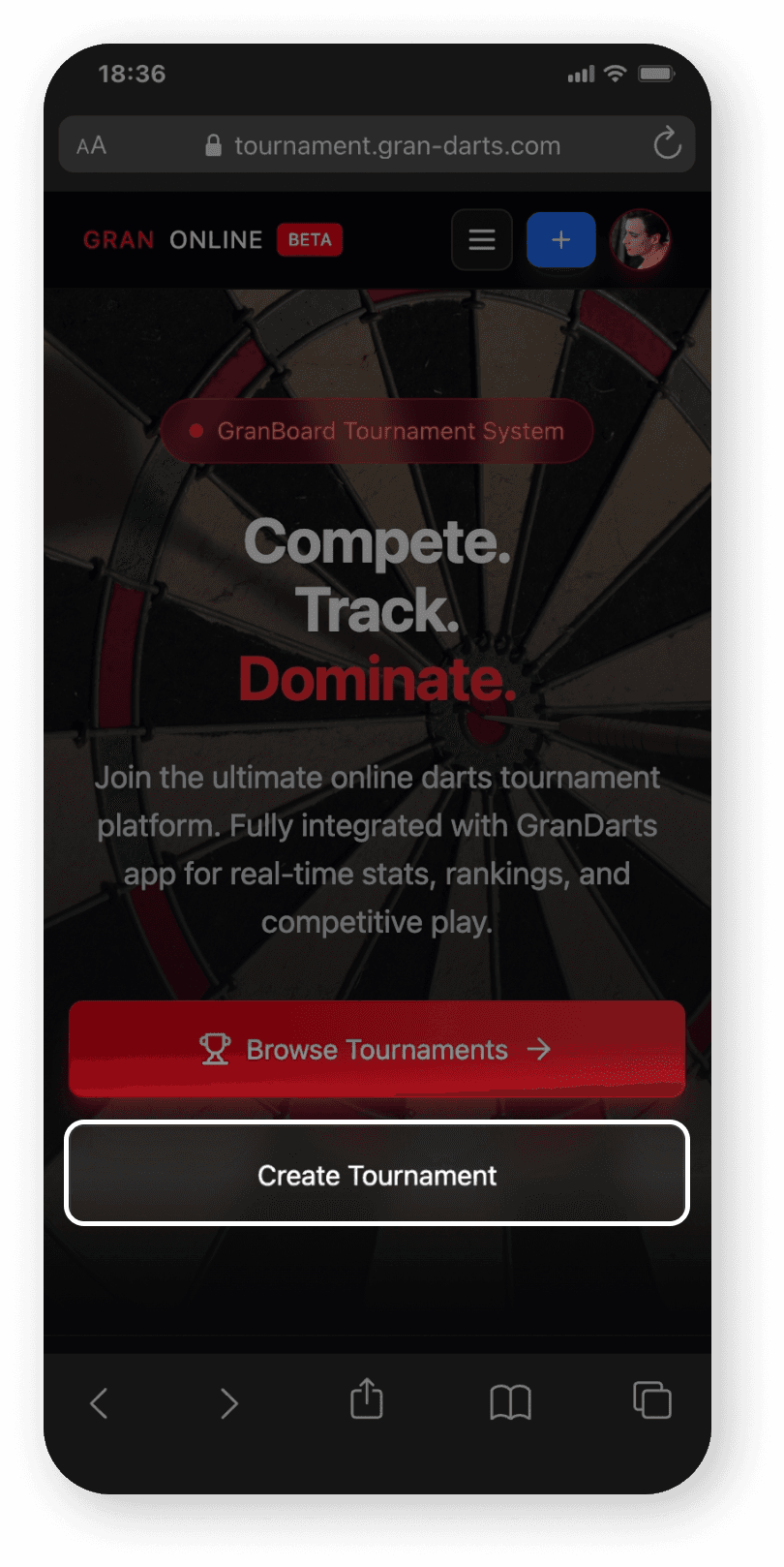
2. Start creating a tournament
Click Create to start a new tournament.
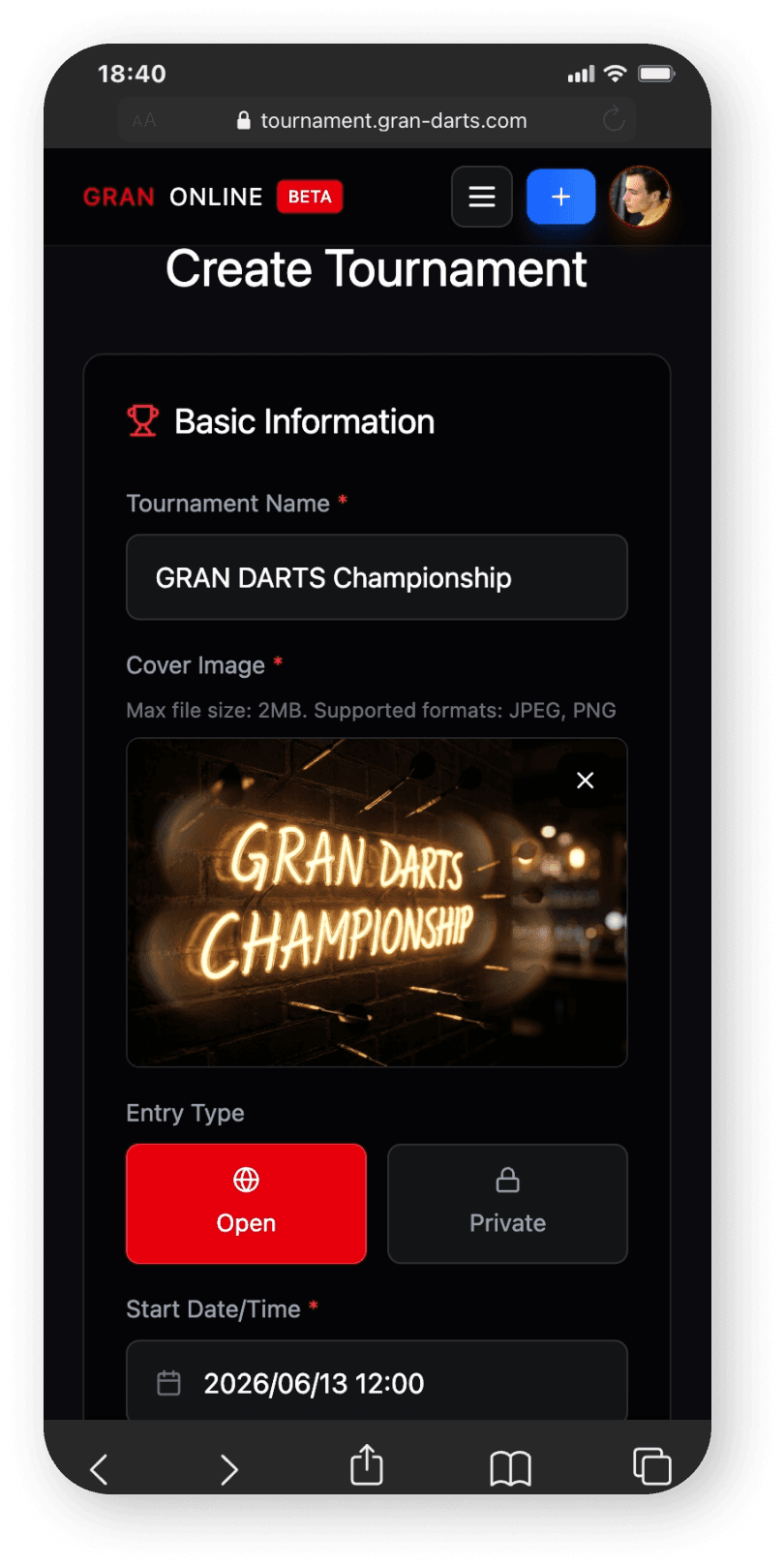
3. Set up the tournament details
Choose the basic info, rules, and management settings.
Most items are simple pick-from-a-list options.
Recommended settings to make organizing easier
Entry Type
Open Anyone can join freely. Private Set a password and limit who can join.
Check-in Start Time
Sets when check-in becomes available. This helps confirm attendance.
Tournament Start Setting
Auto Start The tournament starts automatically at the scheduled time.
Manual Start The organizer starts the tournament by pressing Start.
Time Limit to Disqualification
Automatically disqualifies players who don’t show up within the set time after a match card is issued.
We recommend setting a time limit to keep the tournament running smoothly.
Manage the tournament with others
Tournament management doesn’t have to be a one-person job.
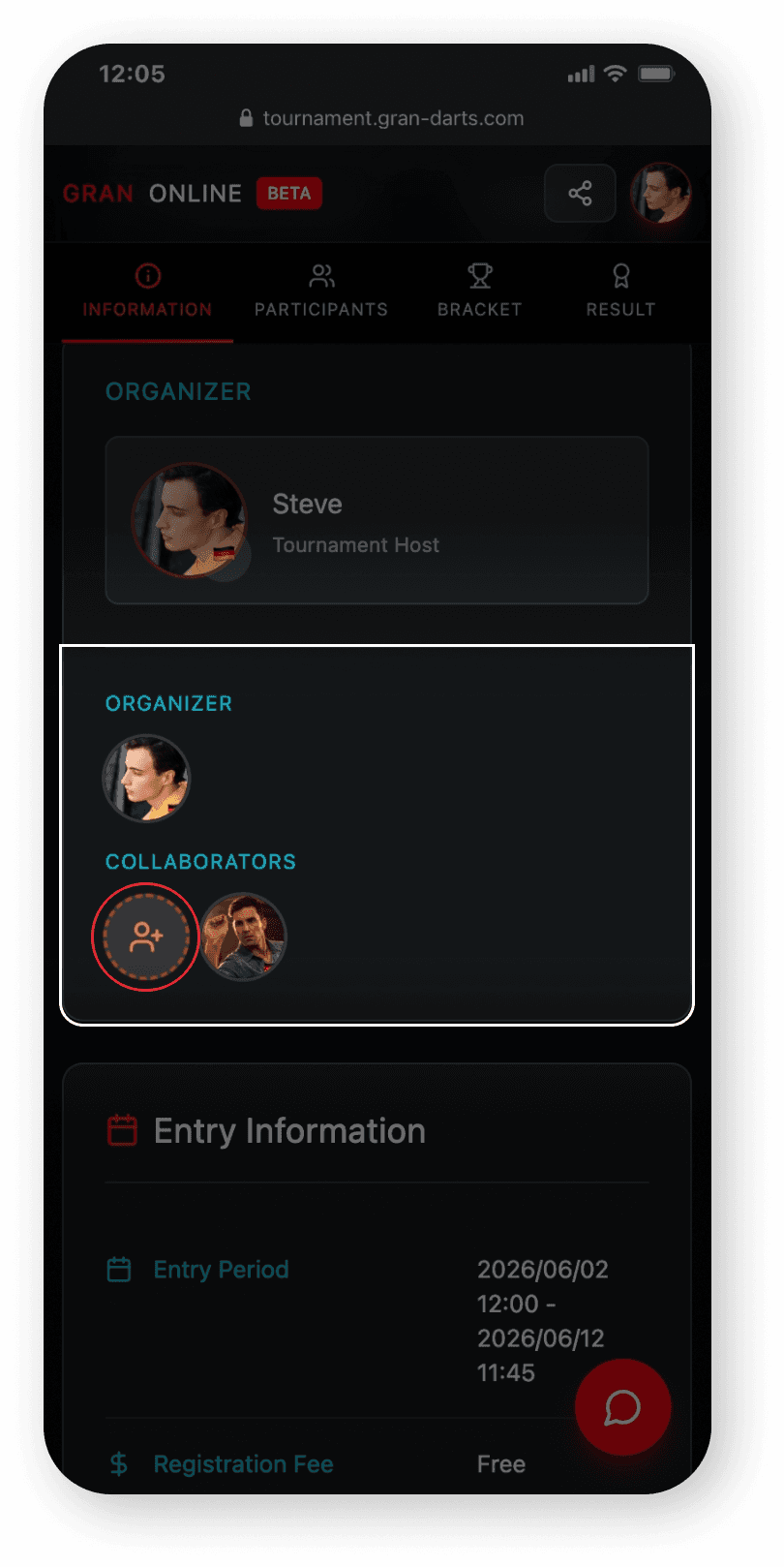
You can add Collaborators to help run the tournament, great for sharing tasks and handling issues.
How to add a Collaborator
Go to the tournament Information page
Scroll to the Organizer section
In Collaborators, tap the Add player icon (+)
Search by name or GRAN ID
Select the player from the list to add them
Gather participants
For Public tournaments, anyone who finds the tournament can join.
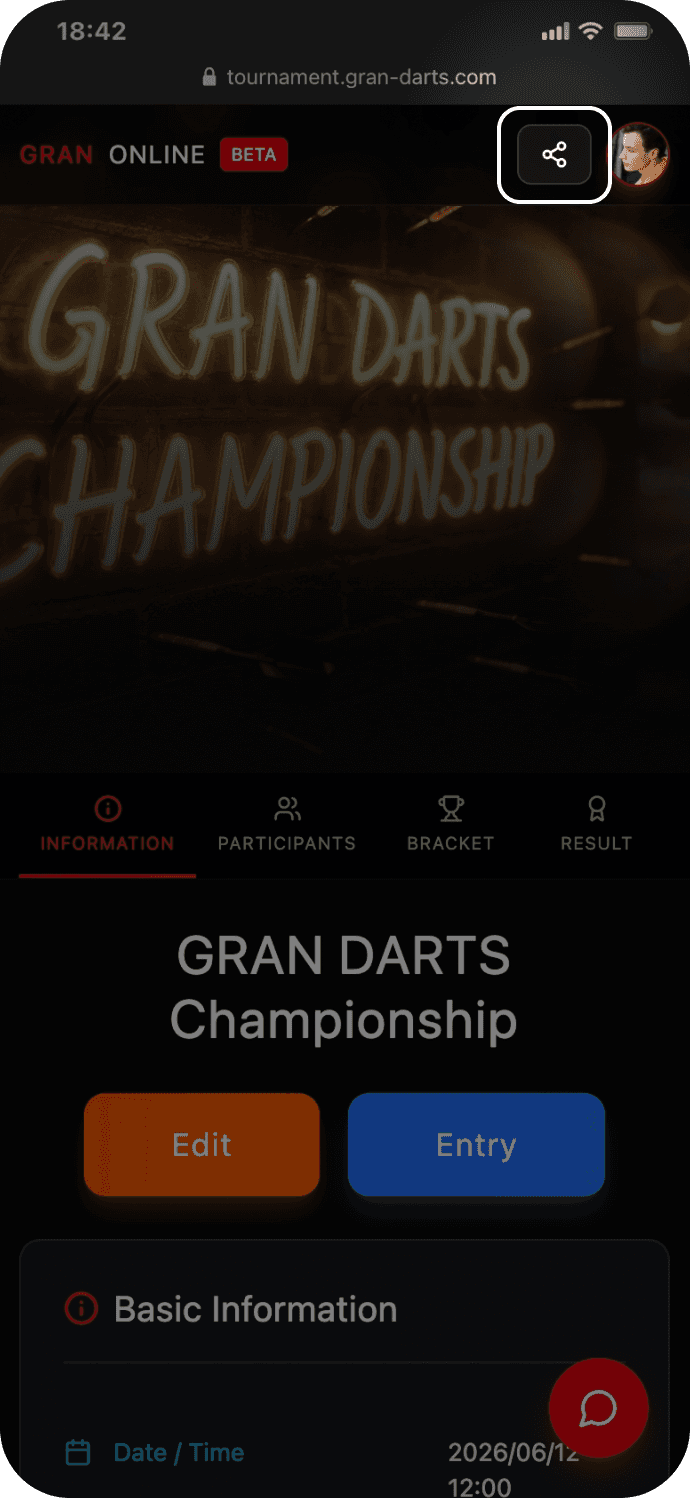
If you want to invite specific friends or a community, copy the link from the Share button and send it to them.
You can increase the maximum number of participants later (you can’t reduce it).
Even if the maximum isn’t reached, the bracket will be generated automatically in the best format for the number of participants.
Start and run the tournament
At the scheduled time, the bracket will be finalized and the tournament will start automatically (if Auto Start is enabled).
Once it starts, match cards are sent automatically and participants will receive notifications.
The tournament generally progresses automatically, but if something goes wrong, the organizer (or moderators) should handle the situation as needed.
Examples of issues and how to handle them
A match got stuck due to a network error
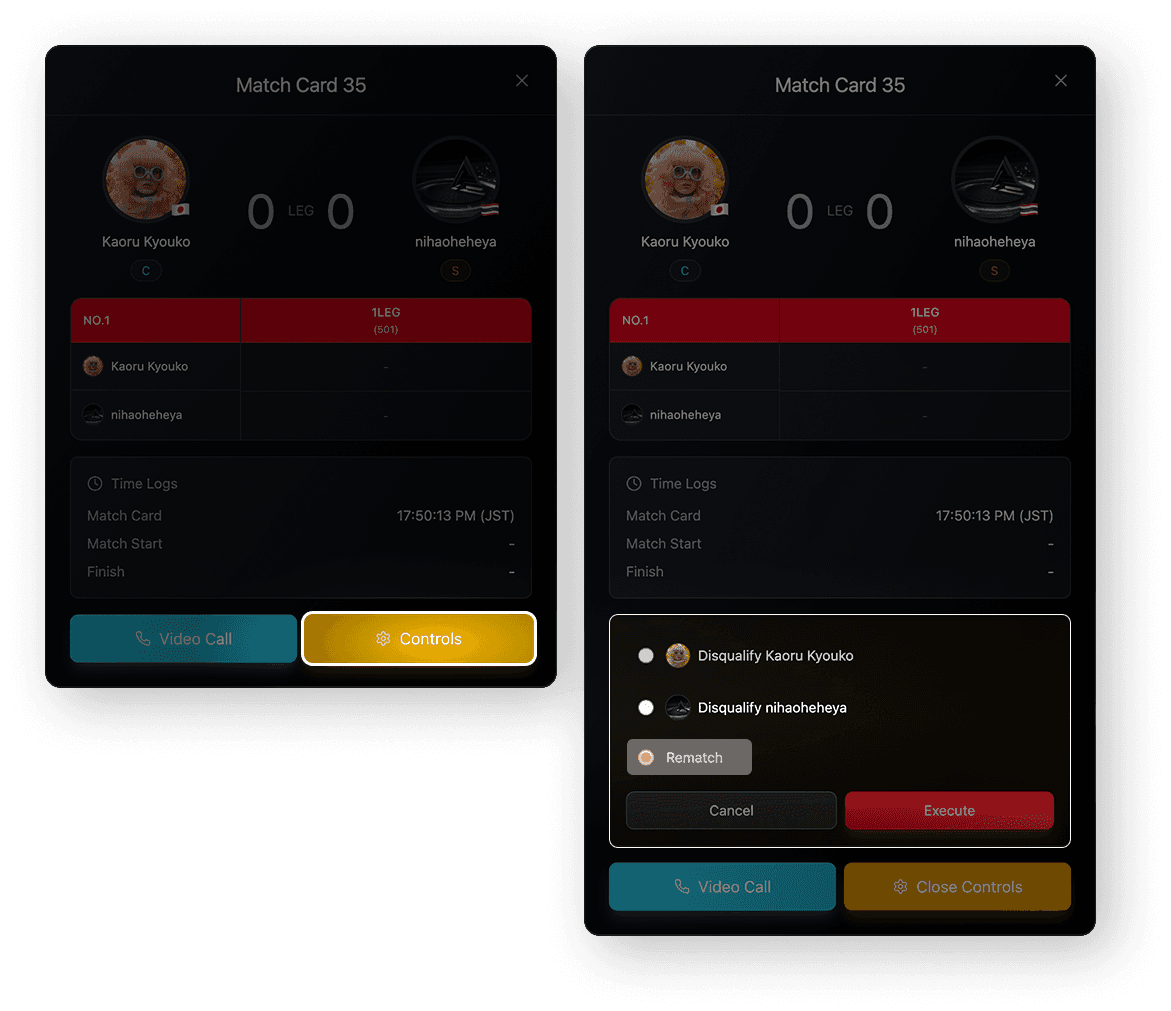
Set up a rematch.
Open the match card from the bracket
Select Control
Set up Rematch
A report of suspicious behavior was received
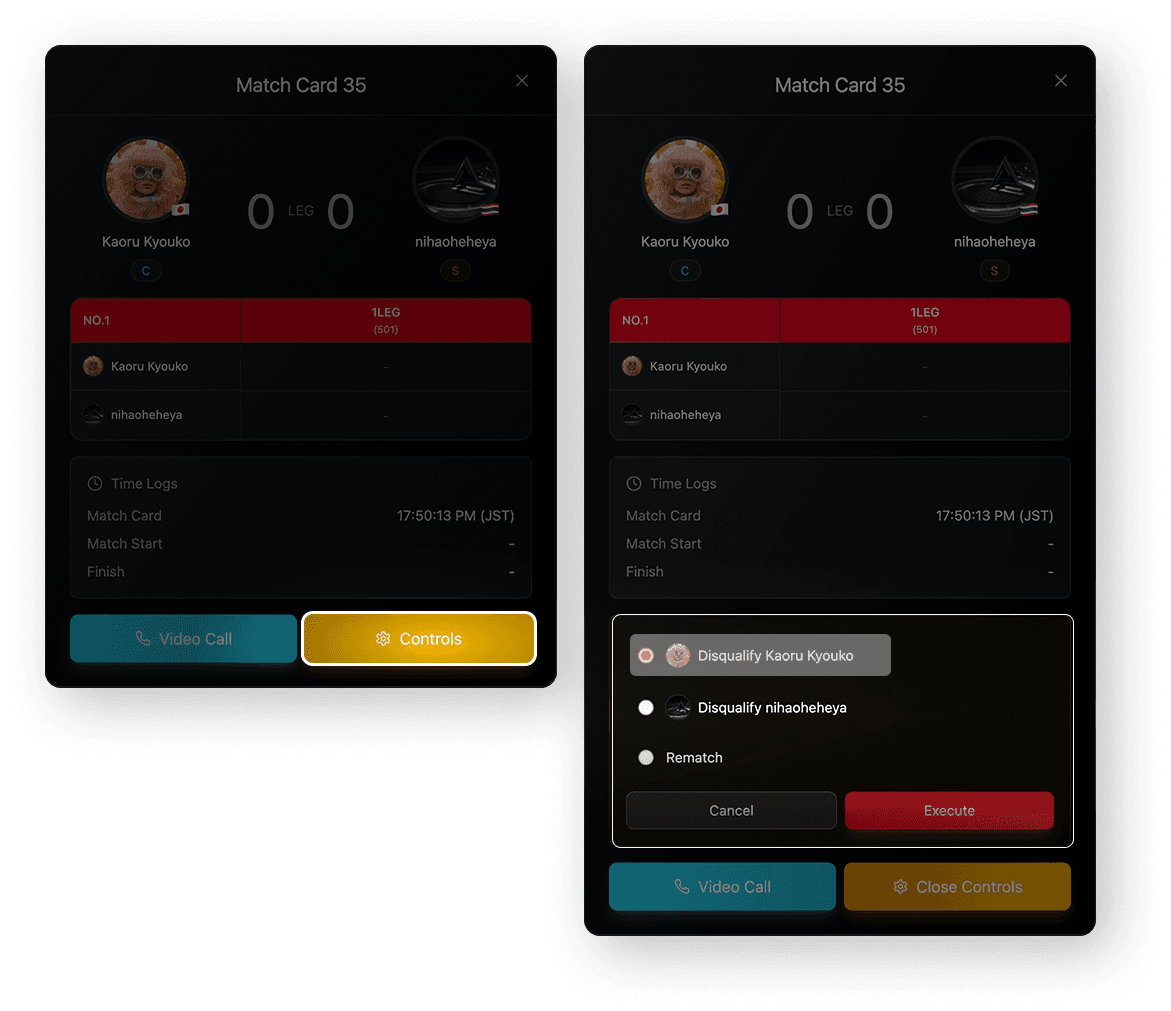
Review the situation and disqualify the player if needed.
Open the match card from the bracket
Select Control
Select the player to disqualify
Communicate with participants
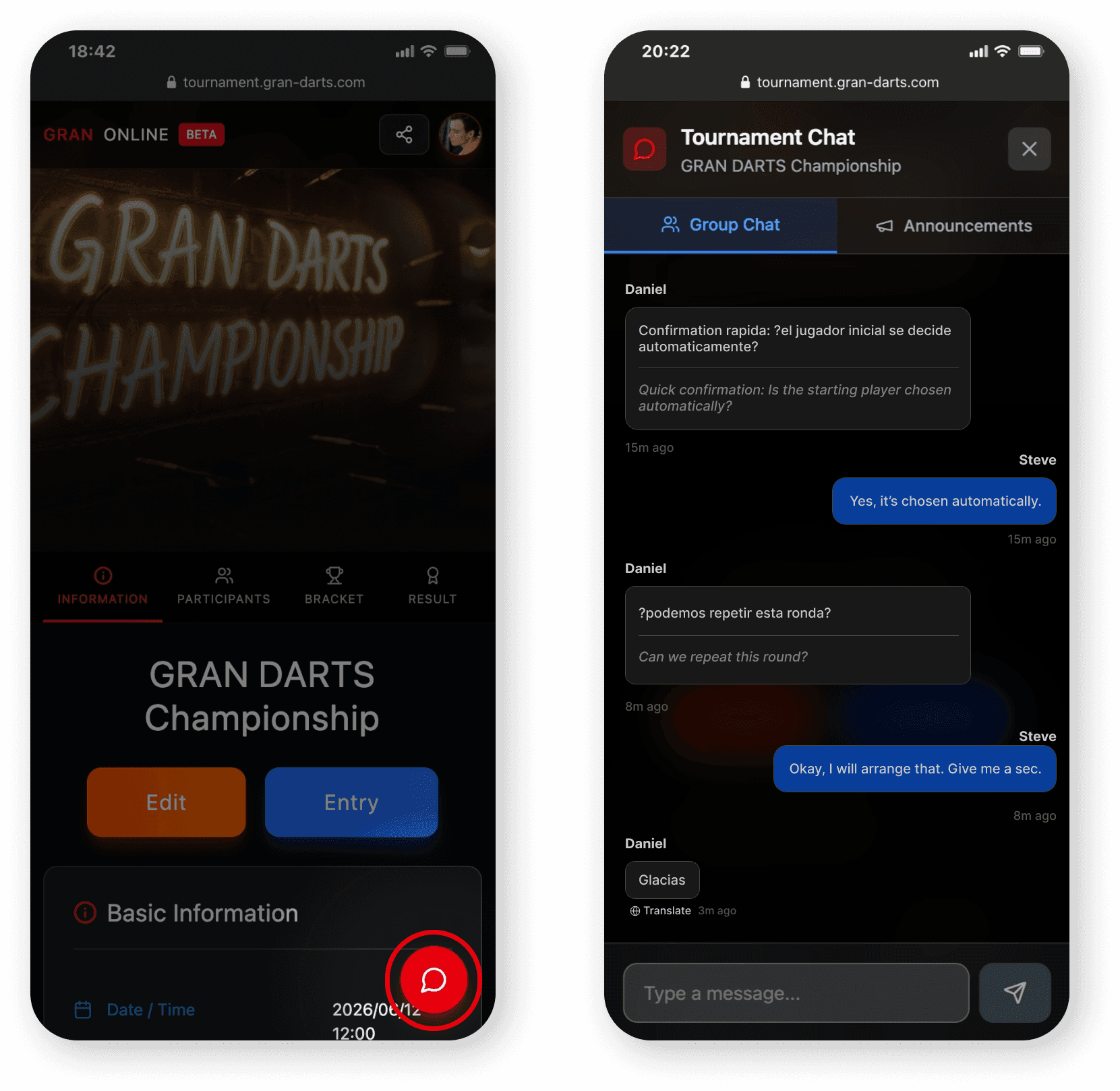
You can communicate with participants using the tournament chat for each tournament.
If you need to confirm more details
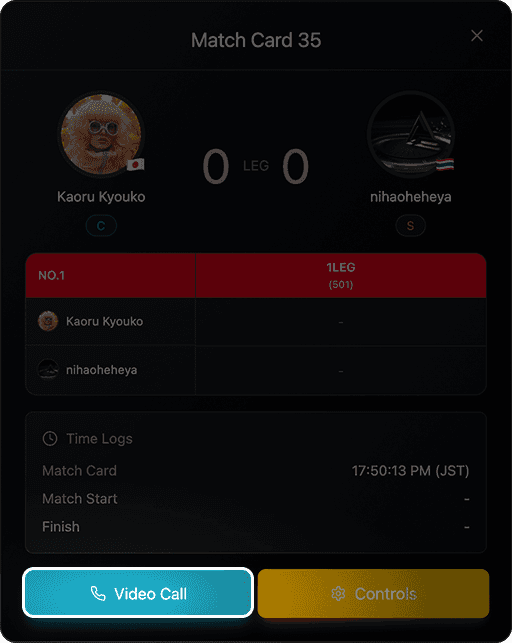
If you need to ask for more details, you can start a video call with participants.
Open the relevant match card
Select Video Call
You will be connected with both players
⚠️ To ensure a fair review, players cannot hear each other in the video call.
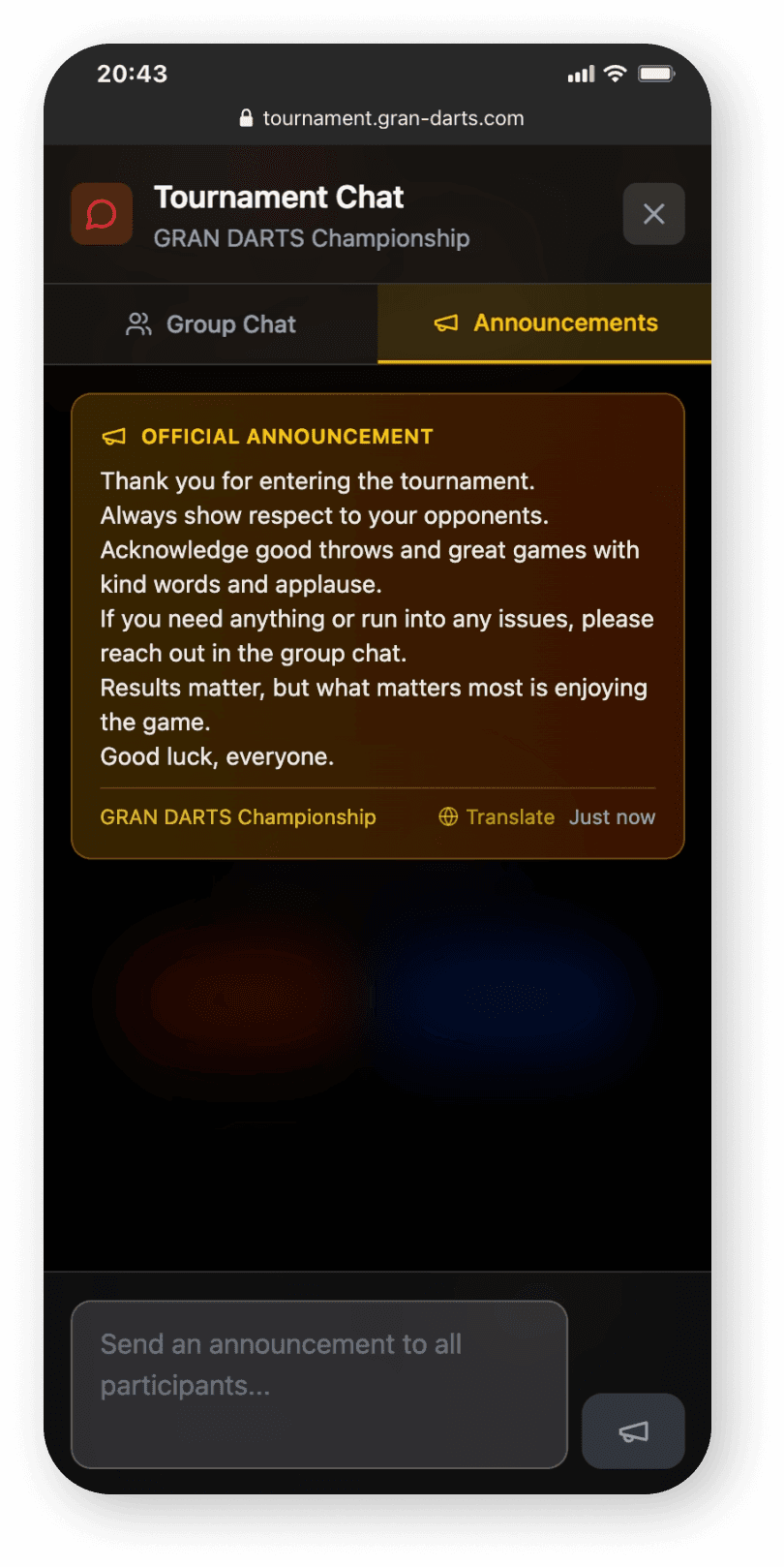
Send an announcement to all participants
You can send an announcement to everyone in the tournament.
Participants with notifications enabled will receive a push notification.
Try organizing a tournament!
Creating a tournament is as simple as filling out the form. Even first-time organizers can set one up quickly. If you’ve been thinking “I want to try hosting one,” go for it!
For your first tournament, we recommend starting small—around 4 players with friends.
It’s a great way to get familiar with the flow and feel of running a tournament.
Once you’re comfortable, invite more players or share it with your community and host all kinds of tournaments!
◼︎ Start a tournament on GRAN ONLINE!
https://tournament.gran-darts.com/
Introduction
To create / join / check tournament progress
Visit the web page GRAN ONLINE
https://tournament.gran-darts.com/
To play your matches
Use the GranDarts app
How to create a tournament
1. Log in
Log in to GRAN ONLINE https://tournament.gran-darts.com/
Use the same email address and password as your GranDarts app account.
2. Start creating a tournament
Click Create to start a new tournament.
3. Set up the tournament details
Choose the basic info, rules, and management settings.
Most items are simple pick-from-a-list options.
Recommended settings to make organizing easier
Entry Type
Open Anyone can join freely. Private Set a password and limit who can join.
Check-in Start Time
Sets when check-in becomes available. This helps confirm attendance.
Tournament Start Setting
Auto Start The tournament starts automatically at the scheduled time.
Manual Start The organizer starts the tournament by pressing Start.
Time Limit to Disqualification
Automatically disqualifies players who don’t show up within the set time after a match card is issued.
We recommend setting a time limit to keep the tournament running smoothly.
Manage the tournament with others
Tournament management doesn’t have to be a one-person job.
You can add Collaborators to help run the tournament, great for sharing tasks and handling issues.
How to add a Collaborator
Go to the tournament Information page
Scroll to the Organizer section
In Collaborators, tap the Add player icon (+)
Search by name or GRAN ID
Select the player from the list to add them
Gather participants
For Public tournaments, anyone who finds the tournament can join.
If you want to invite specific friends or a community, copy the link from the Share button and send it to them.
You can increase the maximum number of participants later (you can’t reduce it).
Even if the maximum isn’t reached, the bracket will be generated automatically in the best format for the number of participants.
Start and run the tournament
At the scheduled time, the bracket will be finalized and the tournament will start automatically (if Auto Start is enabled).
Once it starts, match cards are sent automatically and participants will receive notifications.
The tournament generally progresses automatically, but if something goes wrong, the organizer (or moderators) should handle the situation as needed.
Examples of issues and how to handle them
A match got stuck due to a network error
Set up a rematch.
Open the match card from the bracket
Select Control
Set up Rematch
A report of suspicious behavior was received
Review the situation and disqualify the player if needed.
Open the match card from the bracket
Select Control
Select the player to disqualify
Communicate with participants
You can communicate with participants using the tournament chat for each tournament.
If you need to confirm more details
If you need to ask for more details, you can start a video call with participants.
Open the relevant match card
Select Video Call
You will be connected with both players
⚠️ To ensure a fair review, players cannot hear each other in the video call.
Send an announcement to all participants
You can send an announcement to everyone in the tournament.
Participants with notifications enabled will receive a push notification.
Try organizing a tournament!
Creating a tournament is as simple as filling out the form. Even first-time organizers can set one up quickly. If you’ve been thinking “I want to try hosting one,” go for it!
For your first tournament, we recommend starting small—around 4 players with friends.
It’s a great way to get familiar with the flow and feel of running a tournament.
Once you’re comfortable, invite more players or share it with your community and host all kinds of tournaments!
◼︎ Start a tournament on GRAN ONLINE!
https://tournament.gran-darts.com/