Android OTG Connection
Supported devices: Android devices capable of OTG connection (USB serial communication) Compatibility may vary depending on your device model and iOS version.
What you need
GRAN EYE
Android Device
USB‑C cable (included)*
* If you have the G1 model, the cable is not included. Please prepare an OTG adapter and a USB cable compatible with the OTG adapter. *If you use an adapter: Apple genuine or a proven compatible adapter is recommended.
Connection steps
1. Power on GRAN EYE
Confirm the LED is on.
2. Open Device Settings and select Gran Eye
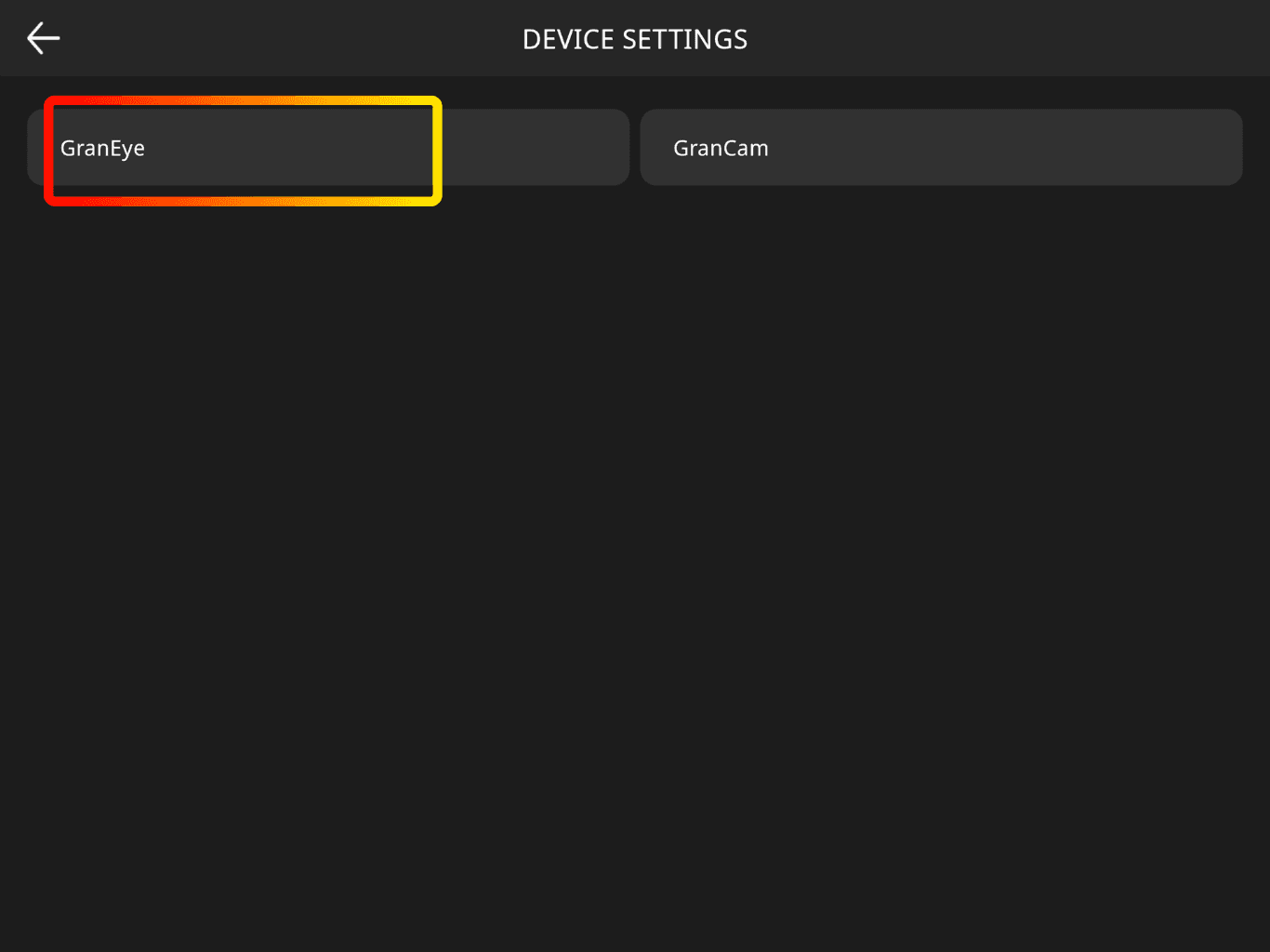
3. Tap Start the initial setup
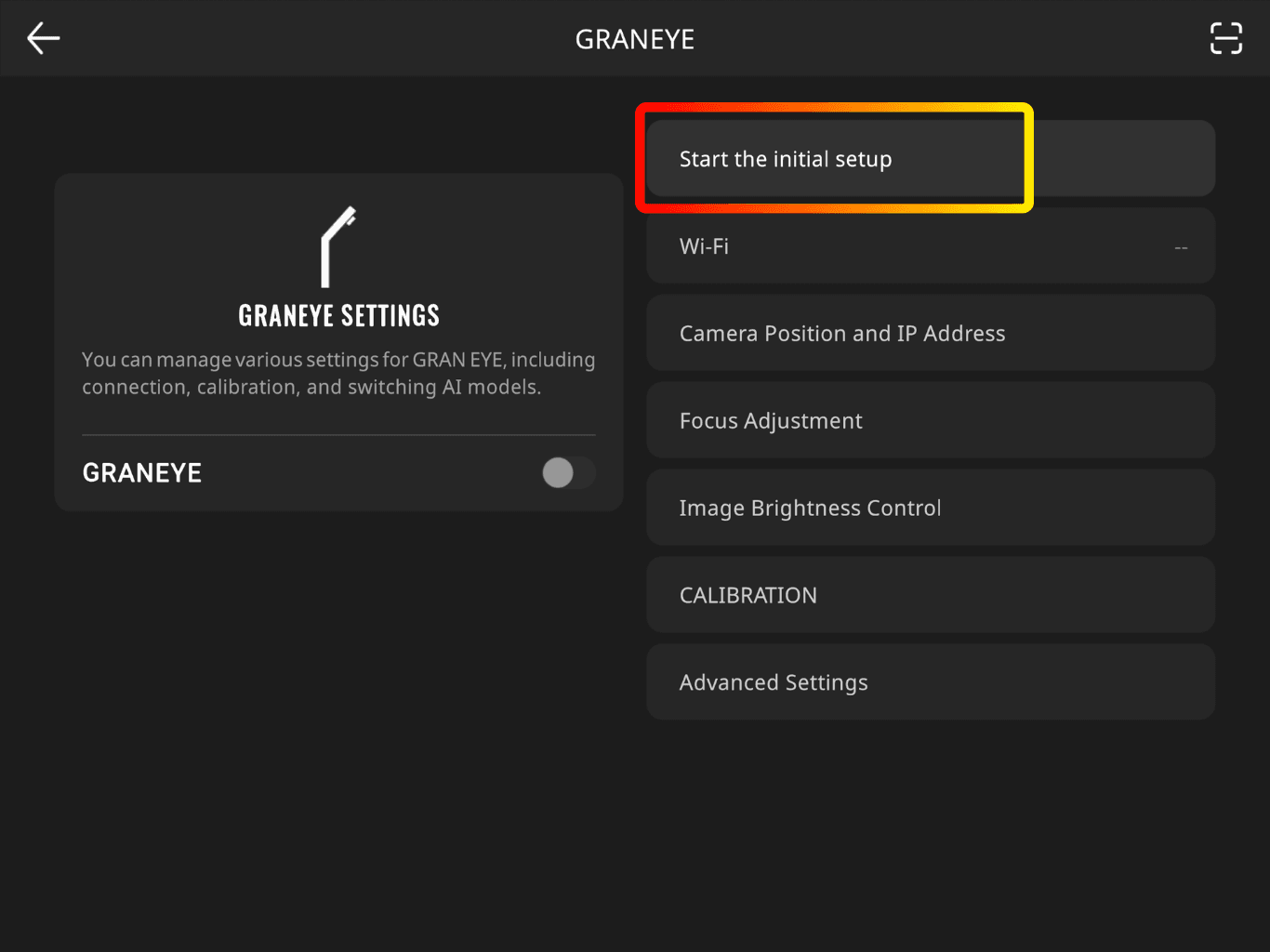
4. Select USB (OTG)
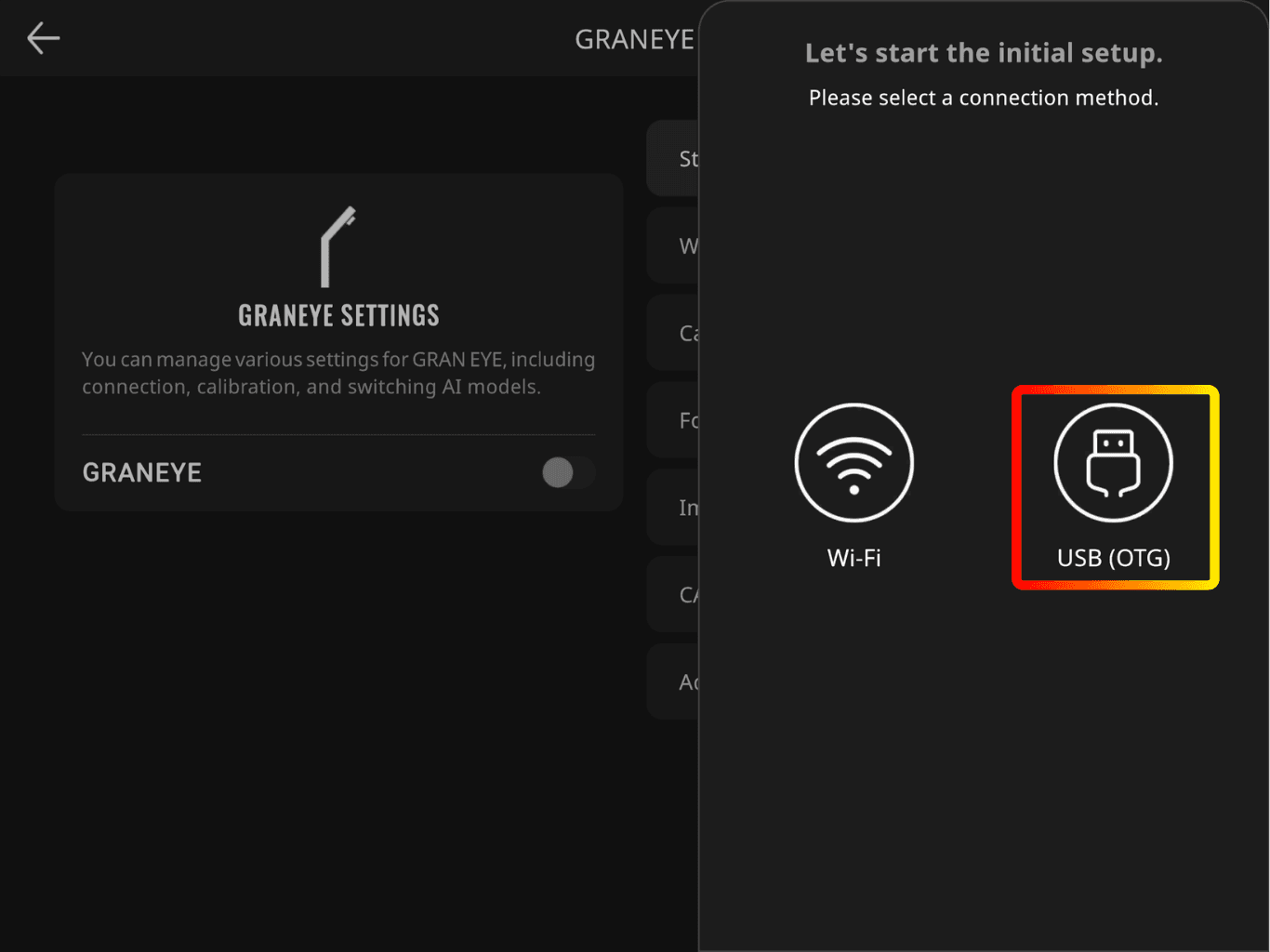
5. Select Yes
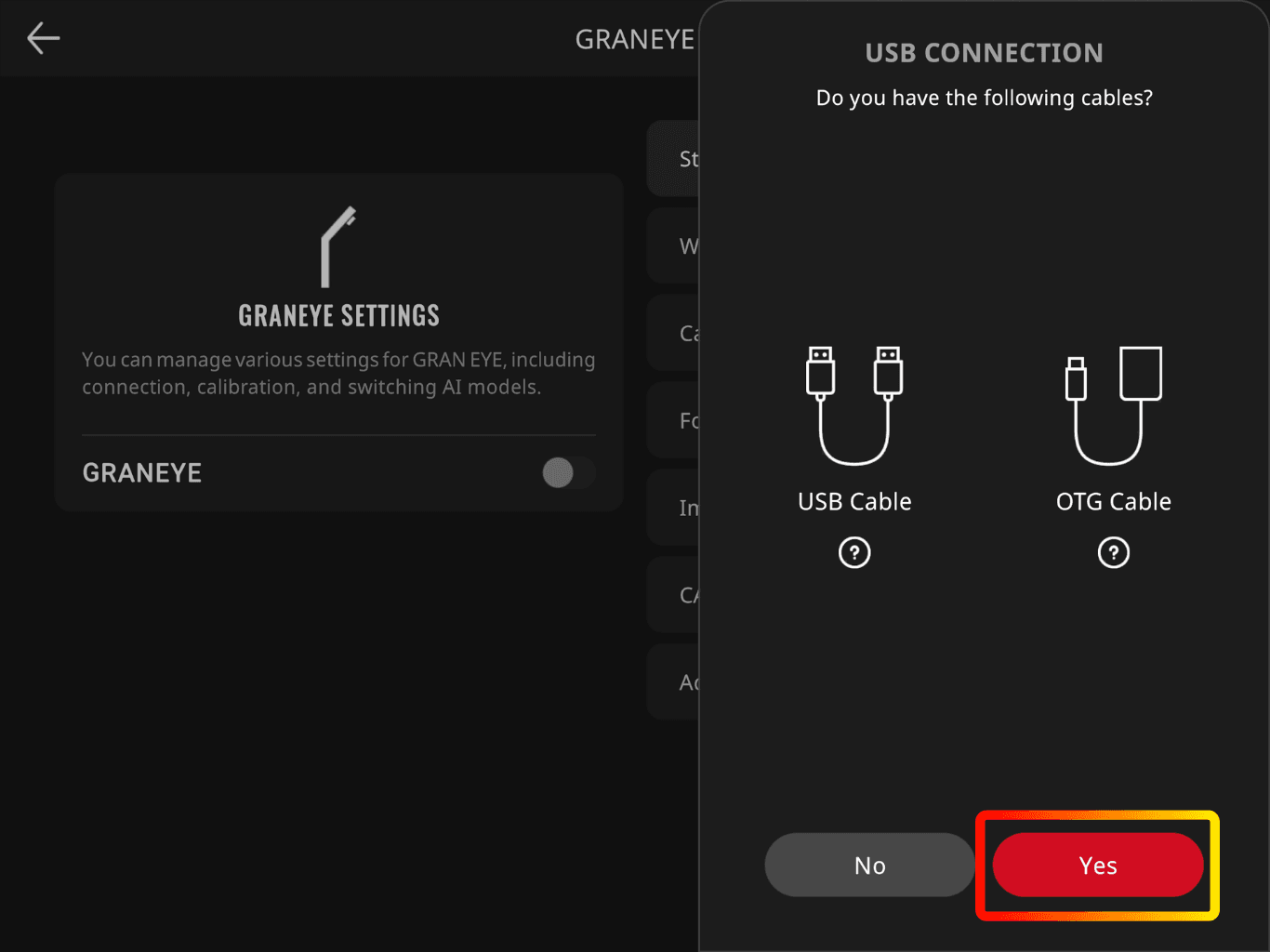
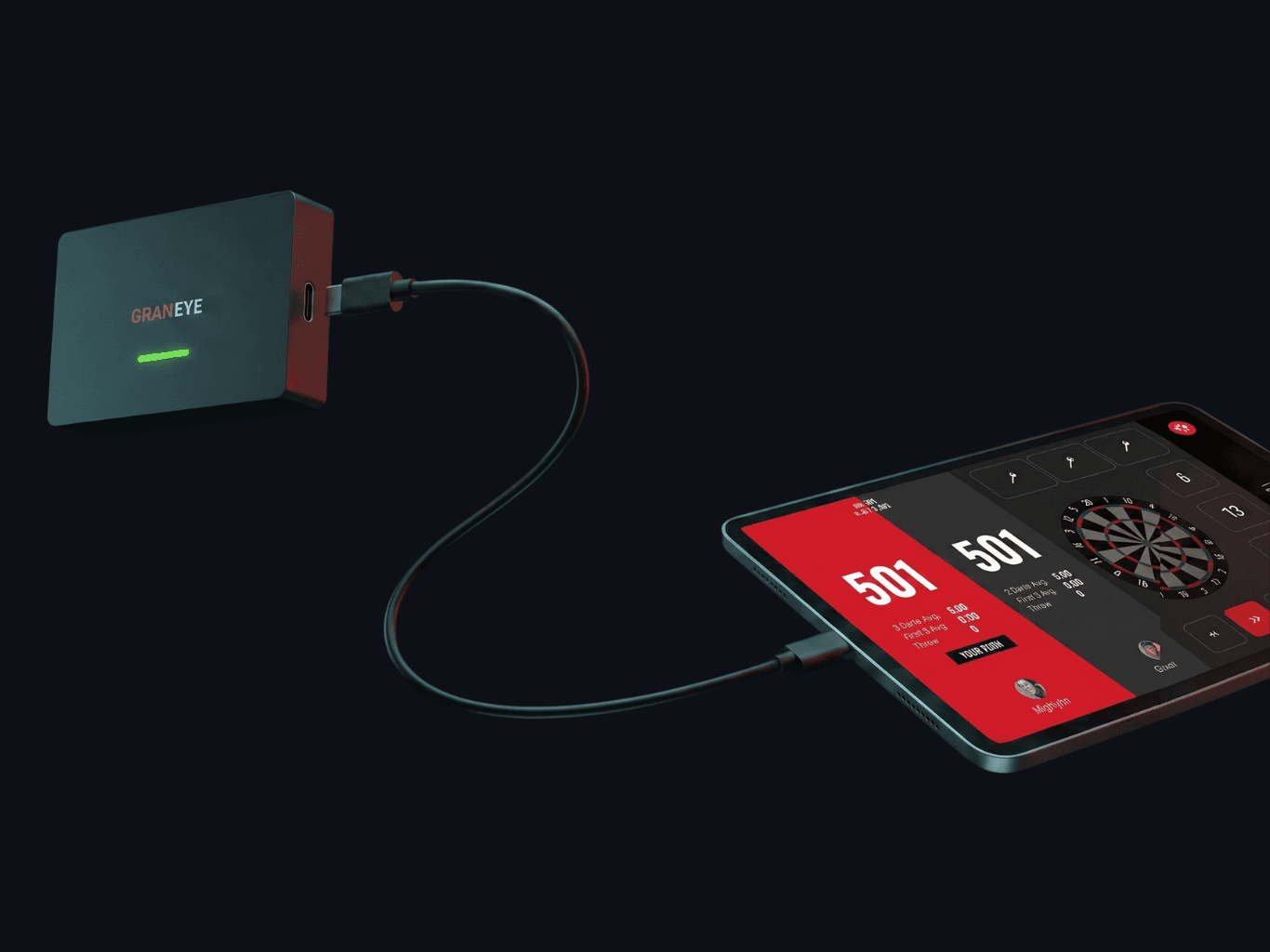
6. Connect GRAN EYE and your device via USB cable
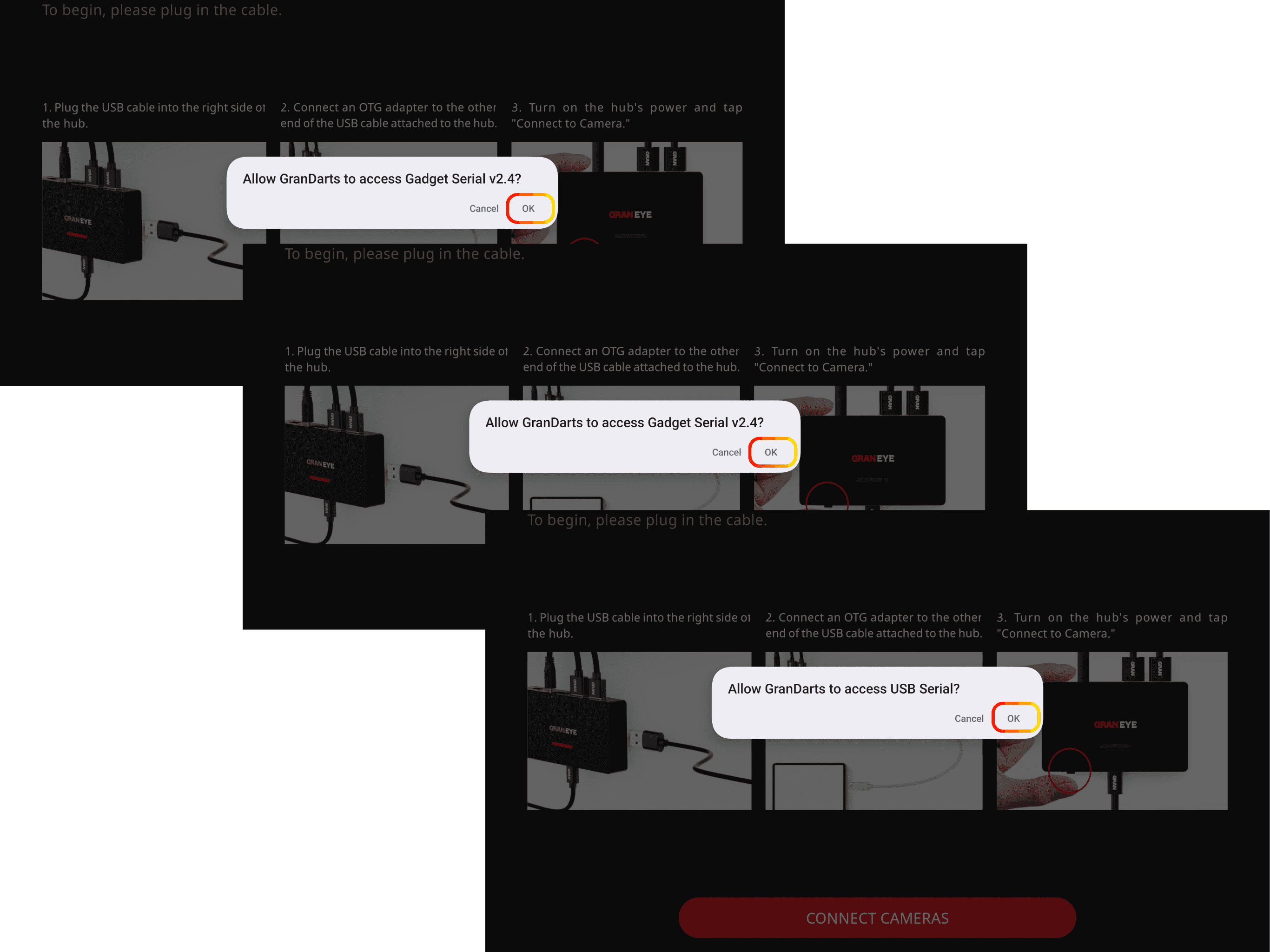
7. Allow USB Serial Access (3times)
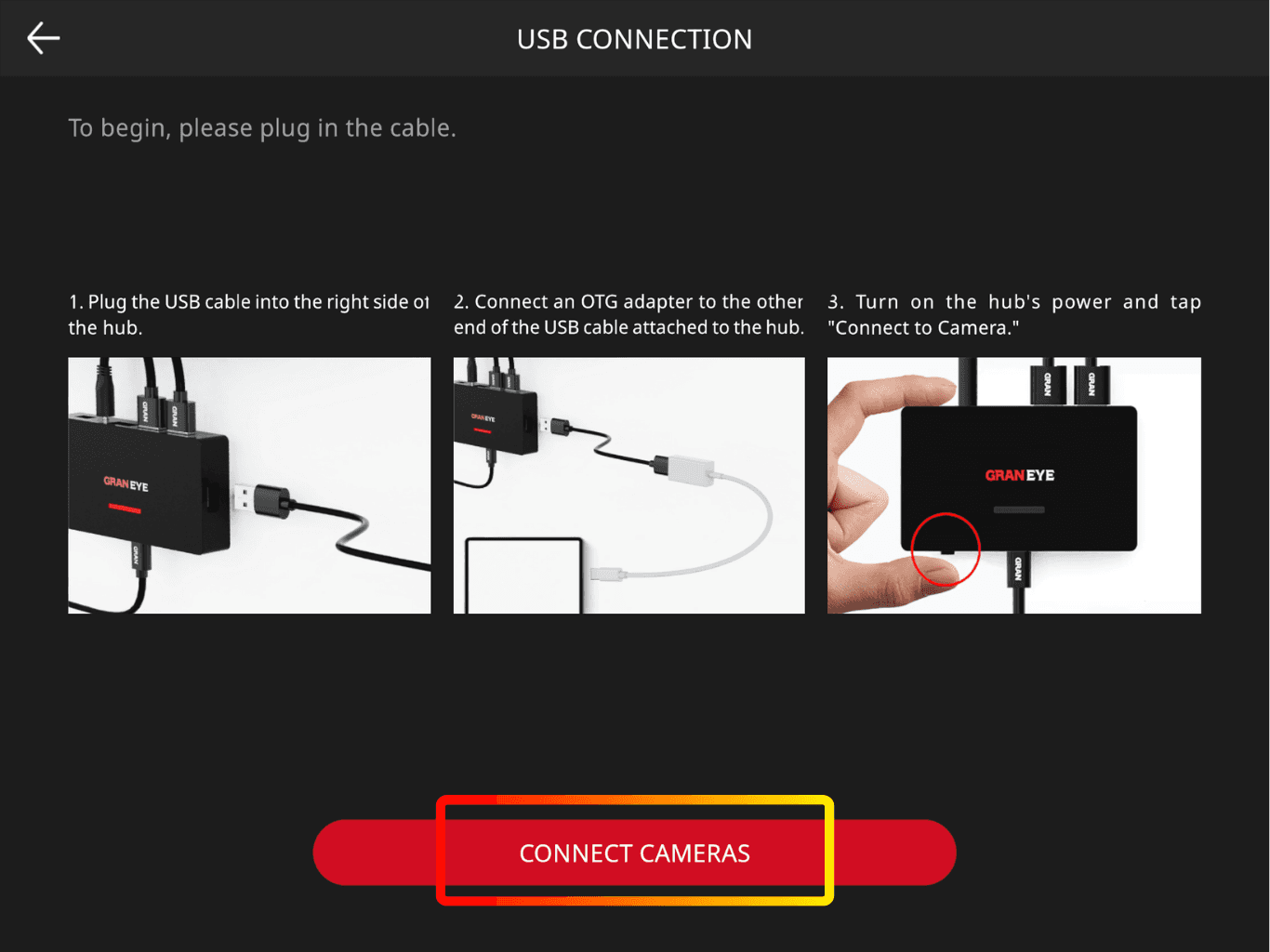
8. Tap CONNECT CAMERAS
9. Connection completed
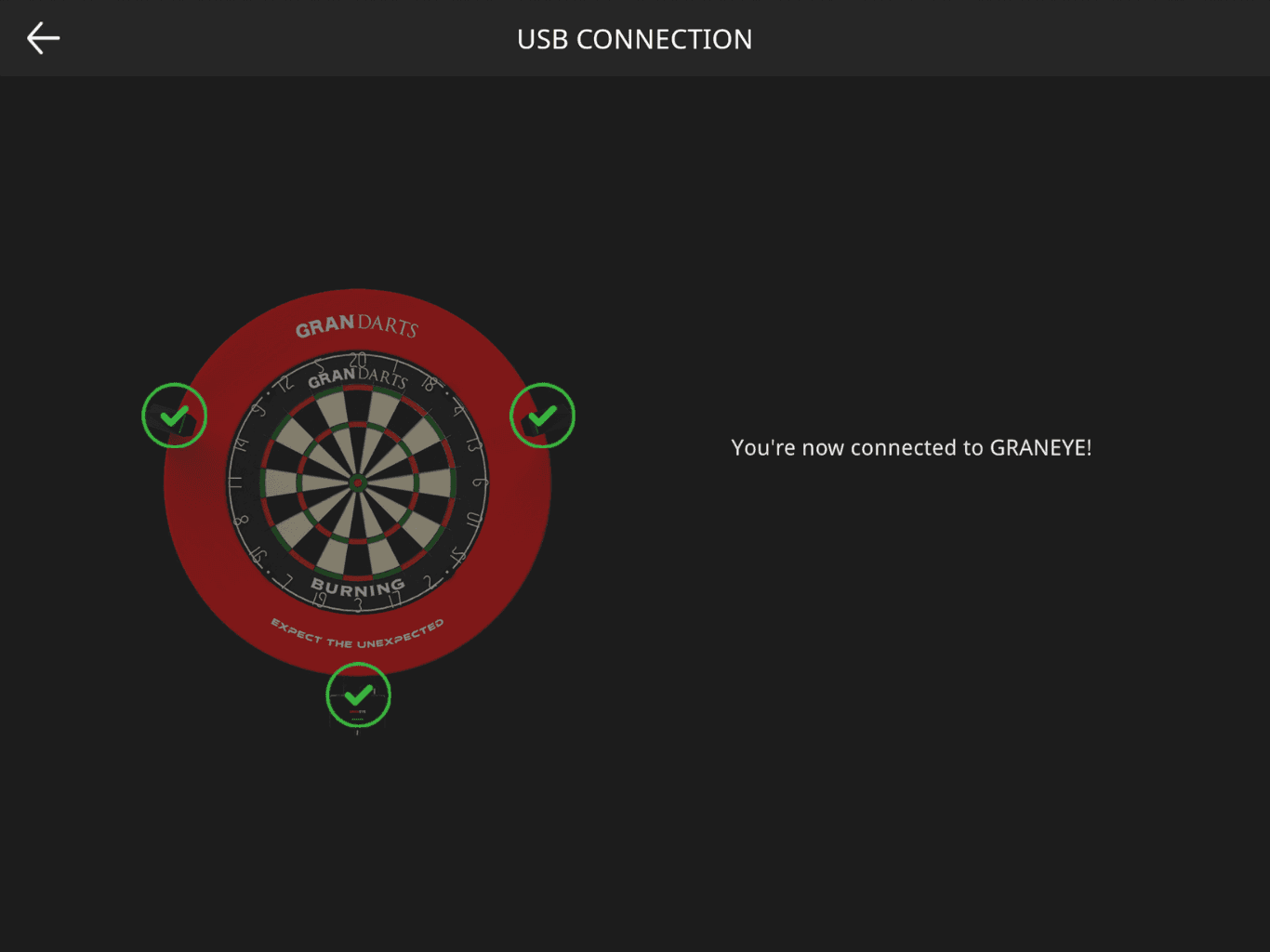
It may take a few seconds to complete the connection.
10. Follow the instructions in the app to continue setup
If it doesn’t connect
Unplug and replug the cable/adapter, then try again
Restart the device and retry
Force-close the app and reopen it
Power-cycle GRAN EYE
Supported devices: Android devices capable of OTG connection (USB serial communication) Compatibility may vary depending on your device model and iOS version.
What you need
GRAN EYE
Android Device
USB‑C cable (included)*
* If you have the G1 model, the cable is not included. Please prepare an OTG adapter and a USB cable compatible with the OTG adapter. *If you use an adapter: Apple genuine or a proven compatible adapter is recommended.
Connection steps
1. Power on GRAN EYE
Confirm the LED is on.
2. Open Device Settings and select Gran Eye
3. Tap Start the initial setup
4. Select USB (OTG)
5. Select Yes
6. Connect GRAN EYE and your device via USB cable
7. Allow USB Serial Access (3times)
8. Tap CONNECT CAMERAS
9. Connection completed
It may take a few seconds to complete the connection.
10. Follow the instructions in the app to continue setup
If it doesn’t connect
Unplug and replug the cable/adapter, then try again
Restart the device and retry
Force-close the app and reopen it
Power-cycle GRAN EYE